Guide
Create a new instruction
How to start a new instruction: on a PC with a title and folder, on a phone straight into the camera, or from an existing PDF.
What for?
Every instruction starts as a draft with a title. You then fill it with steps: record them, import photos and videos, or generate them from an existing document. The link and QR code only open it once it has been approved.
Before you start
- A role with the right to edit: Editor, Creator, Team Admin or Workspace Admin.
- The workspace is not read-only, so the trial or subscription is still running.
- On a phone: the browser is allowed to use the camera.
Step by step
On a PC
-
On the start page, click Record a new instruction. Alternatively, open Instructions or a folder and click New instruction.
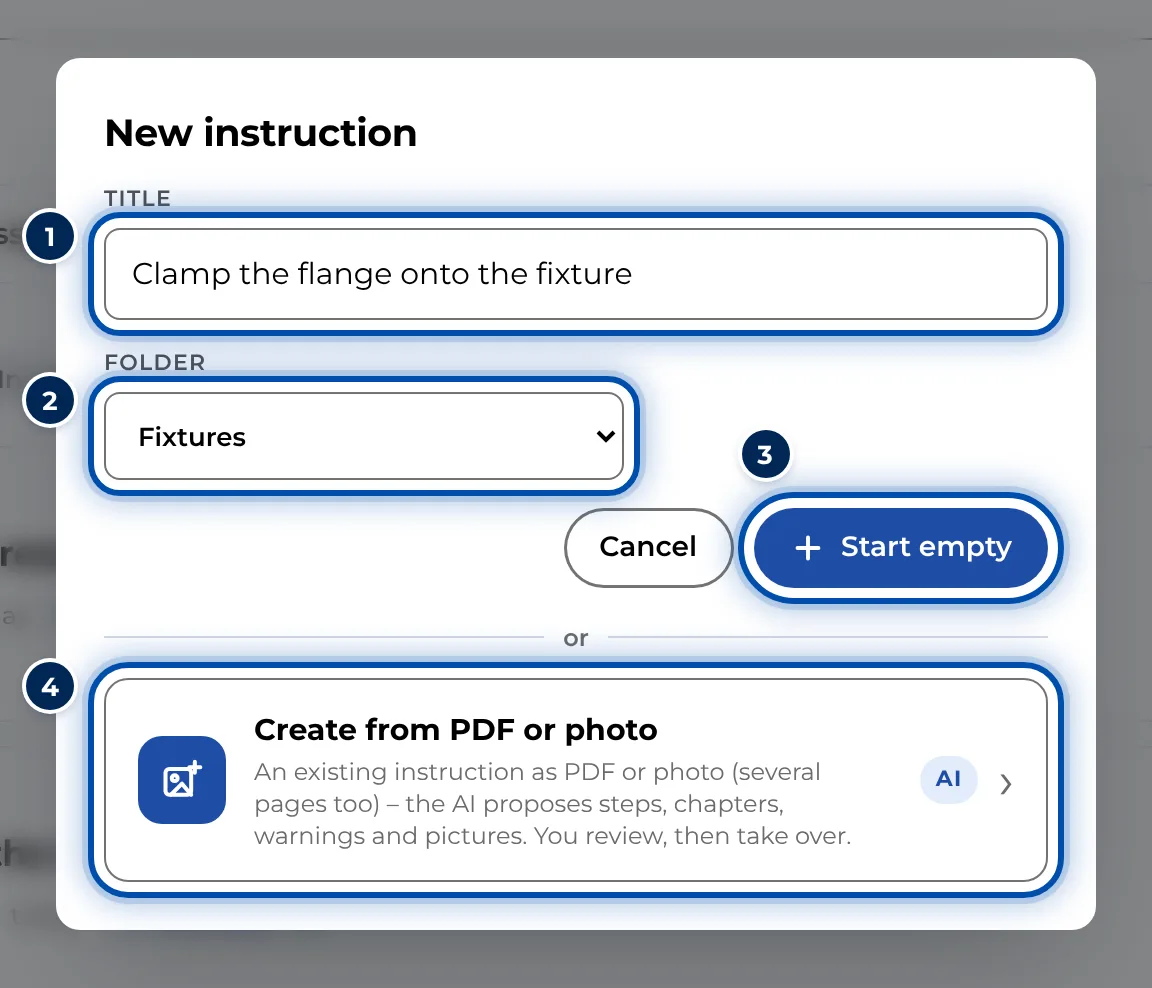
The New instruction dialog with title, folder and the option to start from a PDF -
Enter a name under Title, e.g. “Clamp the flange onto the fixture”. Good titles name the task and the part.
-
Pick a folder under Folder or leave No folder. The field only appears if there are folders you can see. If you start inside a folder, it is already selected.
-
Click Create (start page) or Start empty (Instructions). GIRI creates the draft and opens the empty editor.
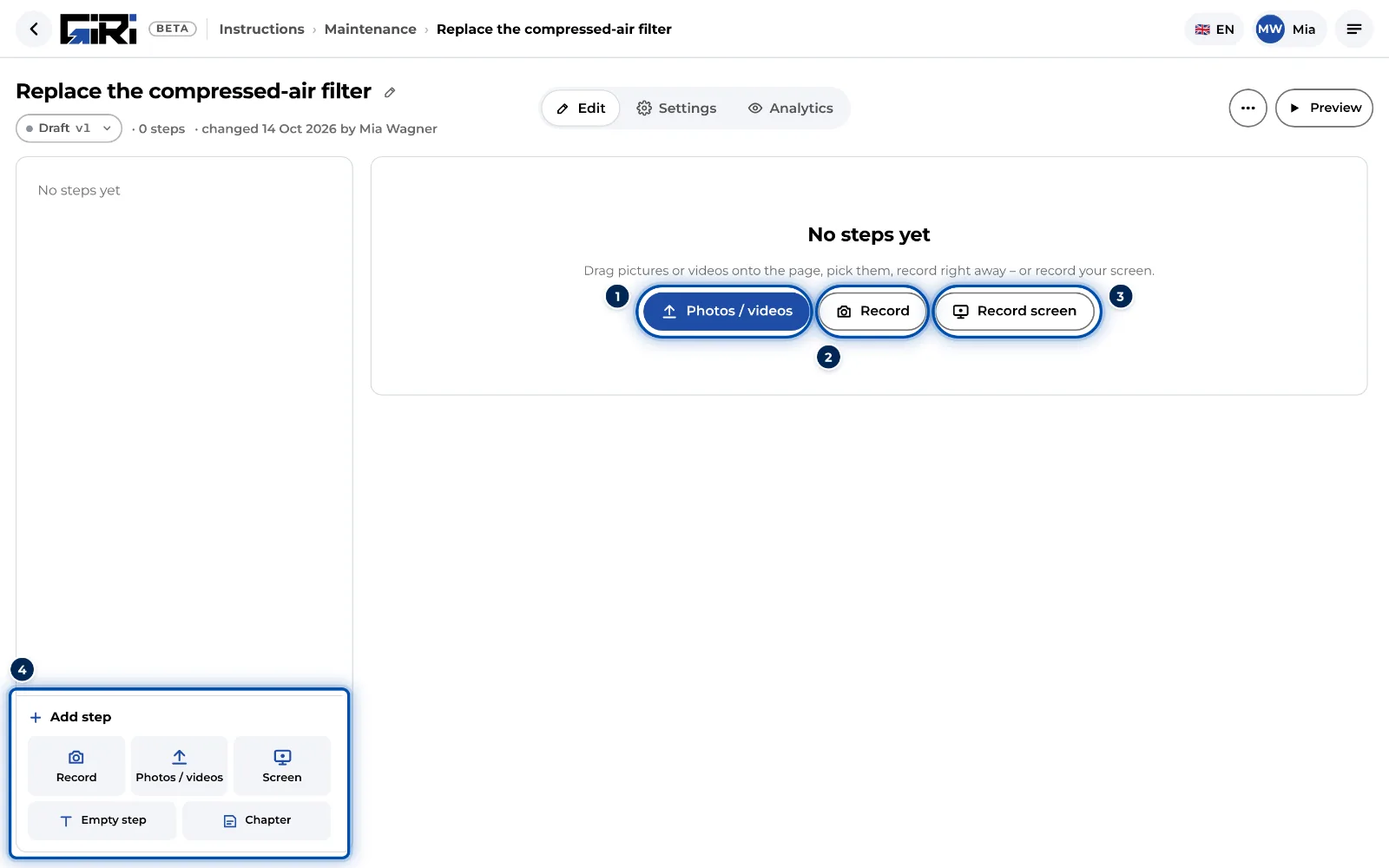
The empty editor on a PC: drop files, pick them, record or record your screen -
Add the first steps: drop photos or videos onto the page, choose Photos / videos, record with the webcam via Record or capture a program with Record screen.
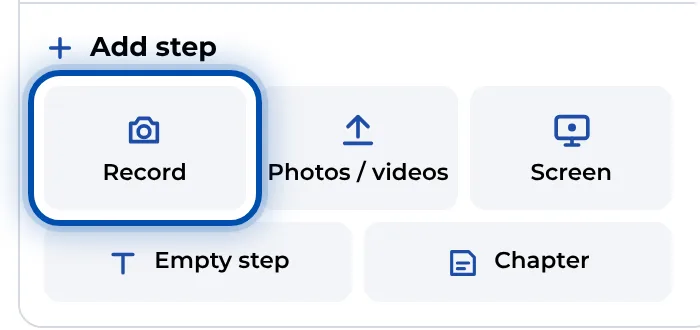
The Add step box: Record, Photos / videos, Screen, Empty step and Chapter
On a phone
-
On the start page, tap Record a new instruction. The camera opens at once, without a dialog. The same applies on a tablet.
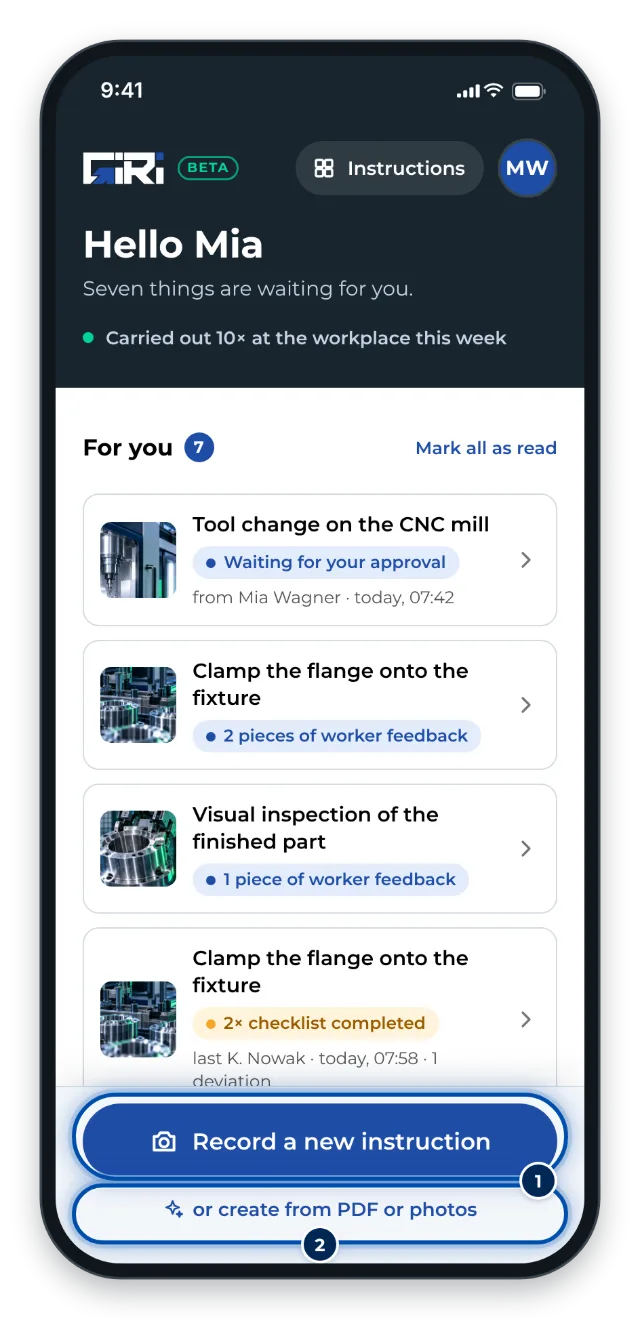
The start page on a phone with the button for recording a new instruction -
Record the steps. See Record steps with the camera for how.
-
Tap Done. GIRI asks: What is the instruction called?
-
Enter the title, pick a folder if you like and tap Continue to the steps. You land in the list of steps.
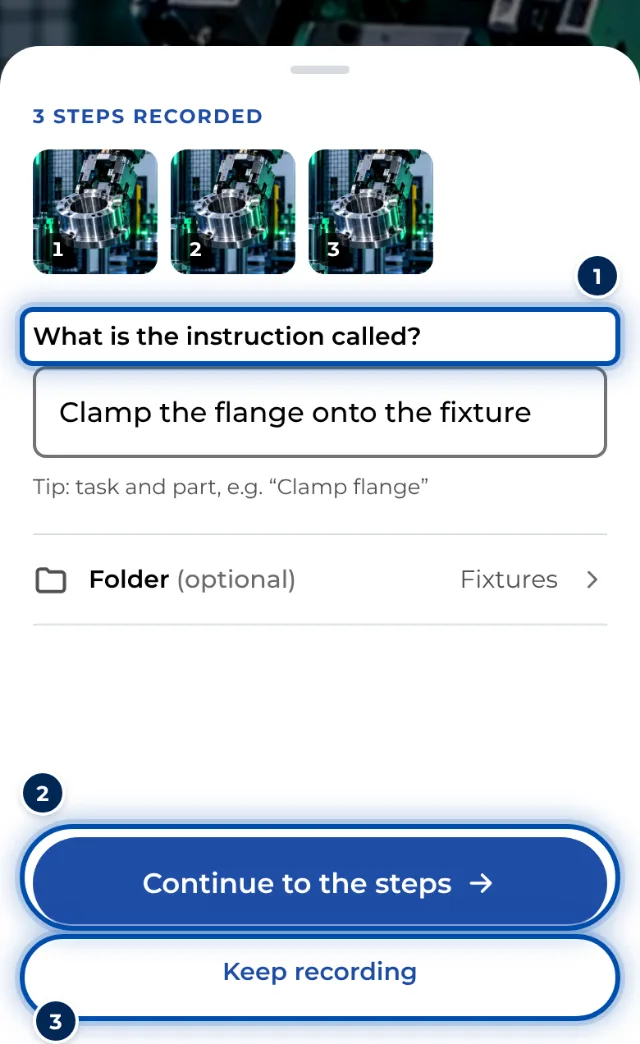
After recording on a phone, GIRI asks for the title and, if you like, the folder
Prefer to set the title and folder first? Open Instructions, tap New instruction and then Start empty in the dialog. The camera then opens as well.
Tips
- If you leave the title empty, the instruction is called New instruction for now. Give it a proper name before you submit it for approval.
- The folder decides who sees the instruction. You can move it later via ⋯ on its card and Move to folder. More in Create folders and file instructions.
- Already have the instruction as a PDF or on paper? Start with Create from PDF or photos. See Create from PDF or photos.
- You can change the title at any time in the editor: on a PC click the title at the top, on a phone tap it.
- If you start on a phone with Record a new instruction and close the camera with the × (Close the camera) before recording a step, GIRI creates nothing. Once the first recording is in, the draft is kept.
Common problems
- The New instruction button is missing. You don’t have the right to edit, or the workspace is read-only. See Trial ended and Roles and permissions.
- GIRI shows Package limit reached. Your package has reached its maximum number of instructions. Talk to your workspace admin.
- You can’t edit the new instruction. If you only have the right to edit through a team, put the instruction into a folder assigned to that team. Without a folder, your workspace role applies. An admin can move the instruction afterwards.
- The camera doesn’t open on the phone. Allow the browser to use the camera. See Camera or screen recording is blocked.