Guide
Email notifications for new feedback
An email for every new piece of feedback, to the person who created the instruction and optionally to the approvers. How to switch it on and off.
What for?
Without the email, you only see workers’ feedback when you look in GIRI. With it, you hear about new feedback at once and can react while the question at the workplace is still open.
Before you start
- You have edit rights for the instruction, so you can change the switches.
- Allow worker feedback is switched on in the Settings. The email switches only appear then.
Step by step
-
Open the instruction and click the Settings tab. On a phone, Settings is in the instruction’s ⋯ menu.
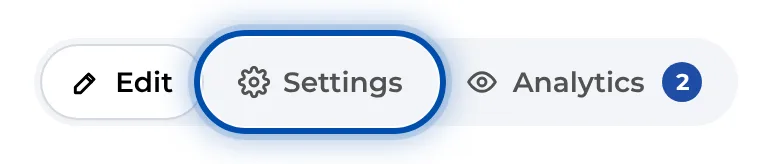
The Settings tab in an instruction’s header -
Under Allow worker feedback, Notify the creator by e-mail is on by default. Below it you see who gets the email, for example One mail to Mia Wagner for every new piece of feedback – sender giri@ar-giri.de.
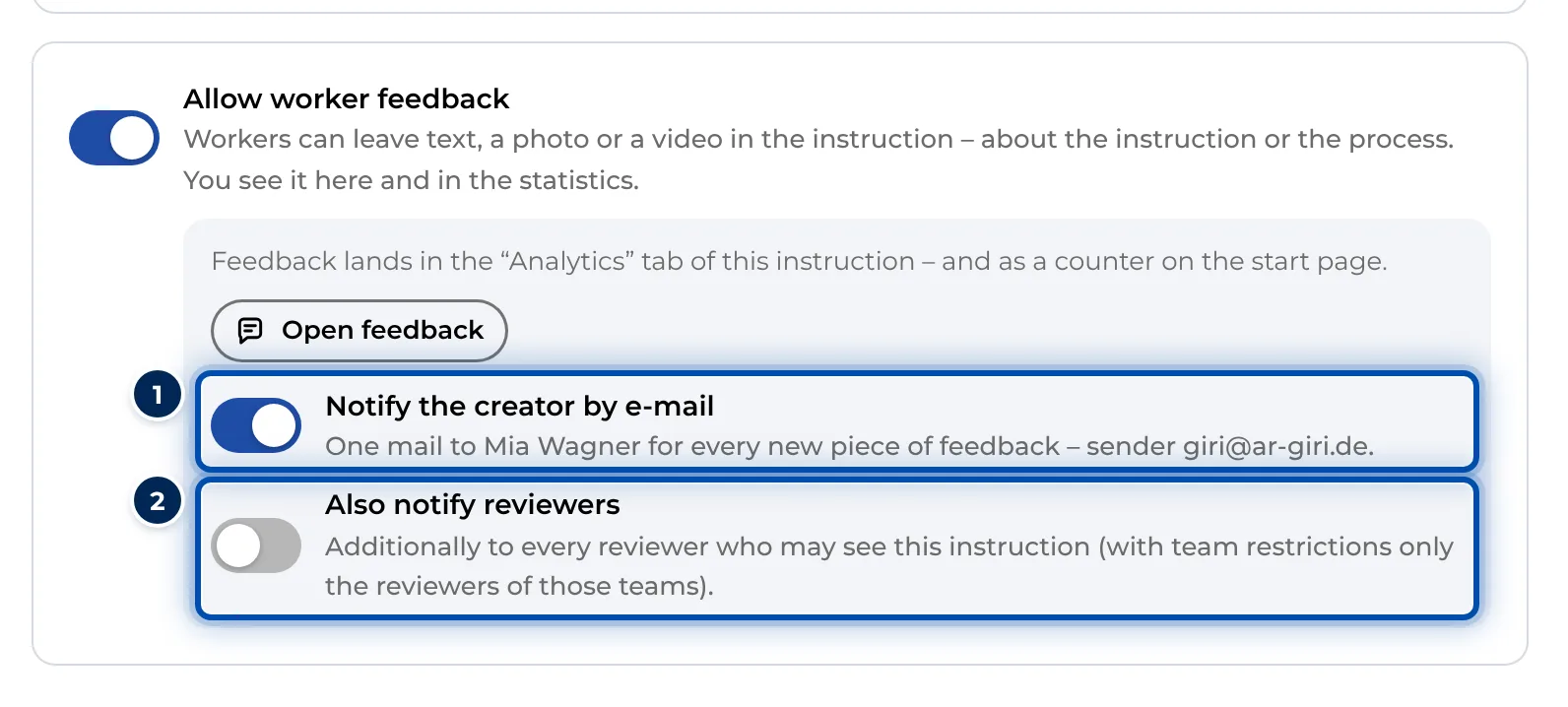
Settings of an instruction with the switches for feedback and emails -
Switch on Also notify reviewers if the approvers should get the email too. These are everyone with the role Approver, Technical Approver, Compliance Approver or Compliance Manager. If the instruction or its folder is restricted to teams, only the members of those teams with one of these roles.
-
The switches save immediately. They take effect on a published instruction too, without a new approval.
-
When a worker sends feedback, the email arrives straight away. It comes from GIRI at giri@ar-giri.de, and the subject starts with “Neues Feedback zu” and names the instruction and step, followed by “New feedback”. German comes first, English below: step, type, the worker’s name, their text and a link to the photo or video. If you are signed in to GIRI in your browser, the “View feedback” button opens the instruction’s analytics page. Otherwise, sign in first and then click the button again.
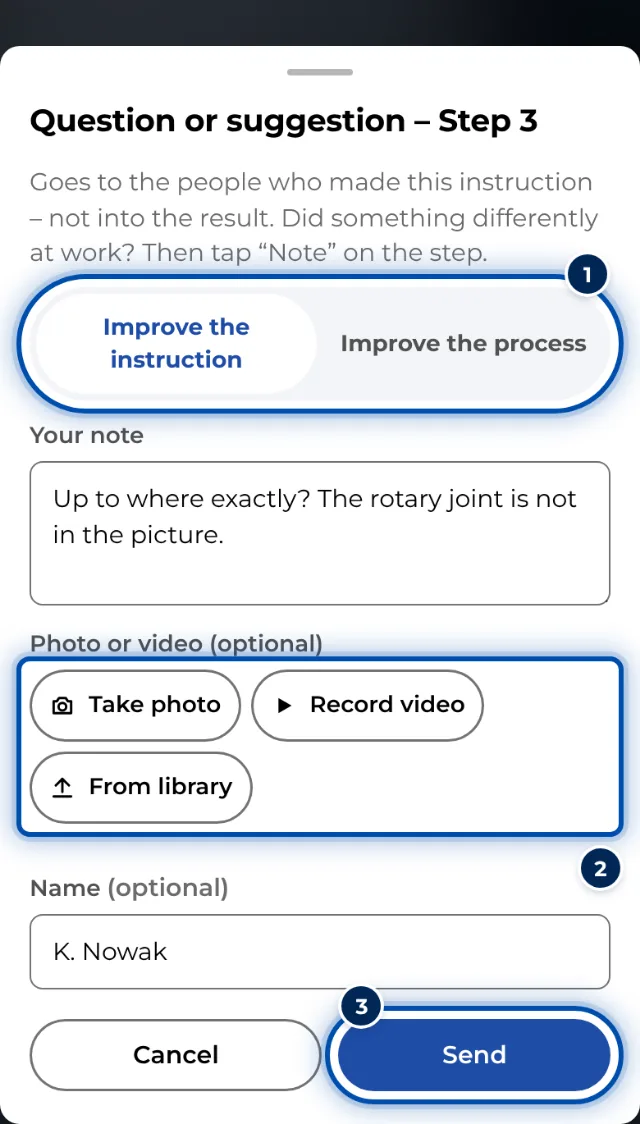
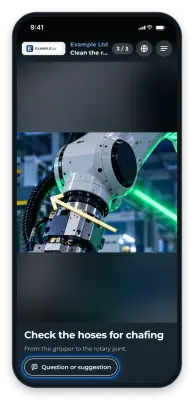
A worker sends a question or suggestion
Tips
- Each piece of feedback sends its own email. For busy instructions, a rule in your mail program helps, for example sender giri@ar-giri.de and subject “Neues Feedback” into a folder of its own.
- All recipients of an email are in the To field together and can see each other’s addresses.
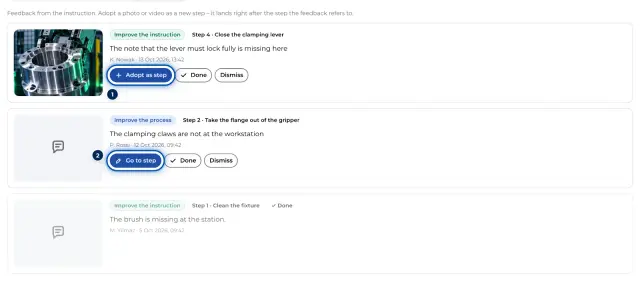
- How to work through the feedback: Handle and adopt feedback.
Common problems
- No email arrived. Check that Notify the creator by e-mail is on and who is named below it. Look in your spam folder and ask your IT whether emails from giri@ar-giri.de are blocked.
- The email goes to the wrong person. It goes to the account that created the instruction; for a copy, to the person who duplicated it. Recipients cannot be chosen freely.
- Admins or creators get no email despite Also notify reviewers. The switch only reaches the four approver roles. Creator, Team Admin and Workspace Admin are not included, even though they may approve too.
- The button in the email shows the views. It opens the analytics page without choosing a tab. Switch to the Feedback tab on that page.
- The switches are missing. Allow worker feedback is off. Switch it on and the email switches appear.