Guide
Animate symbols and let them follow the video
Make symbols pulse, bounce or blink, and let them follow the marked spot in a video instead of pausing the video.
What for?
Movement draws the eye. A pulsing arrow stands out at once, even on a small phone screen. If the part moves in the video, a following symbol moves with it, and workers see the action without a break.
Before you start
- A role with the right to edit.
- A symbol on the picture, see Add markings and symbols.
- For following, a step with a video. It’s best to set this up on a PC.
Step by step
On a PC
-
Select the symbol on the picture that should move.
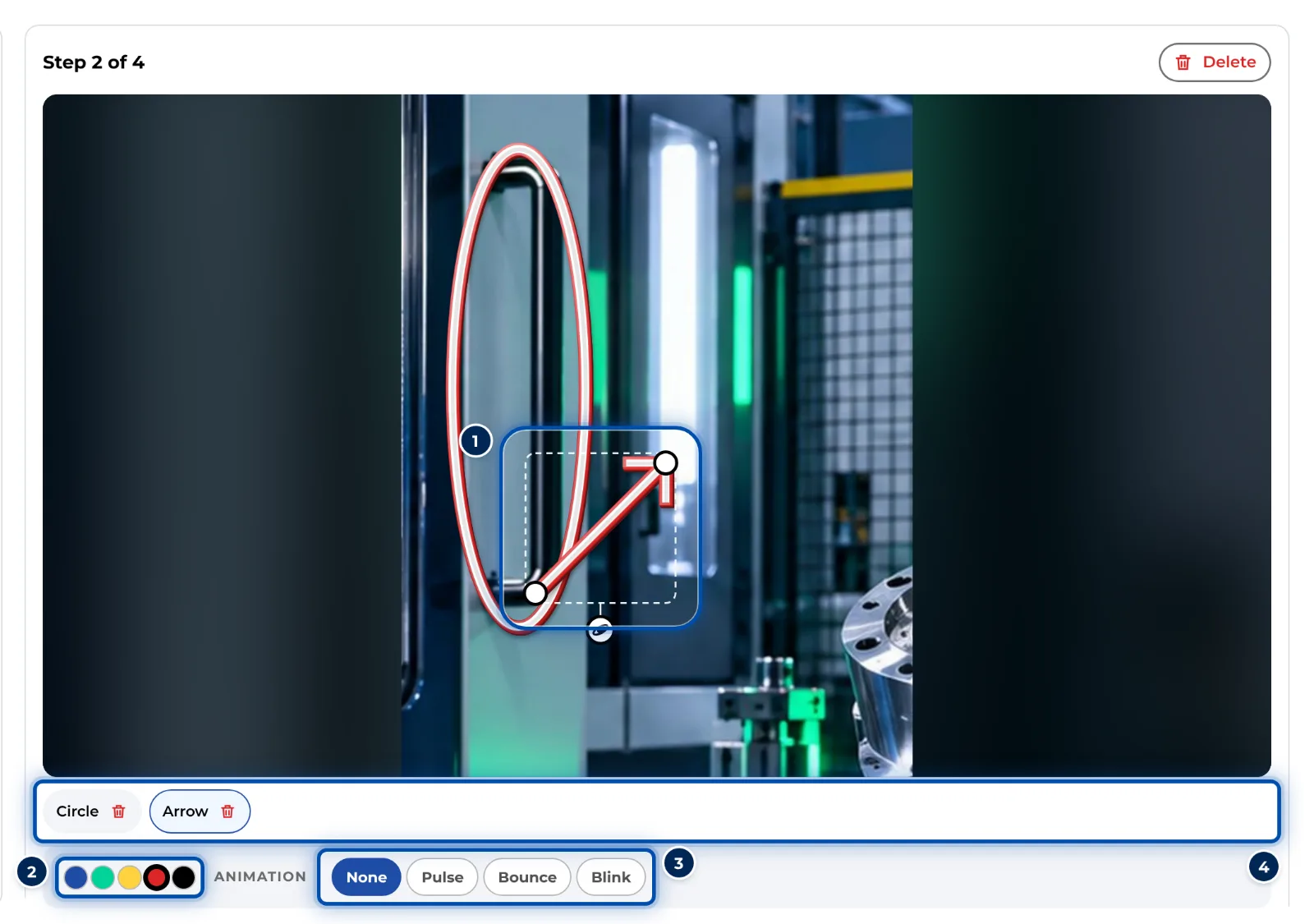
A selected symbol with handles and the bar for colour and animation -
In the bar below the picture, next to Animation, click Pulse, Bounce or Blink. None switches the animation off again.
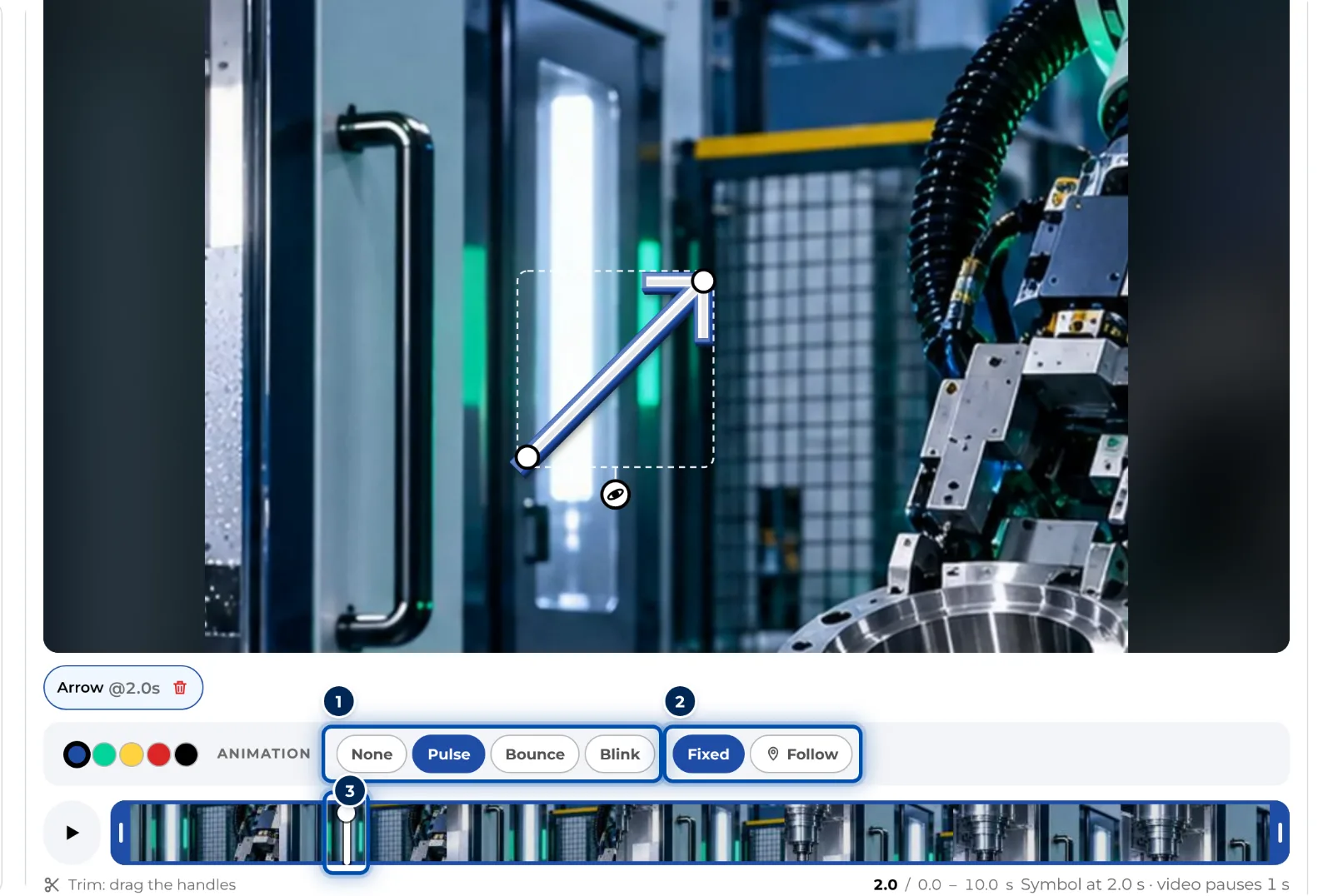
The bar below a video with colour, animation and the Fixed and Follow buttons -
To make a symbol follow, place it in the video at a moment when the spot is clearly visible, and align it precisely.
-
Click Follow in the bar. GIRI analyses the video frame by frame and shows the progress.
-
GIRI then tells you until when the symbol follows. Play the video and check the result.
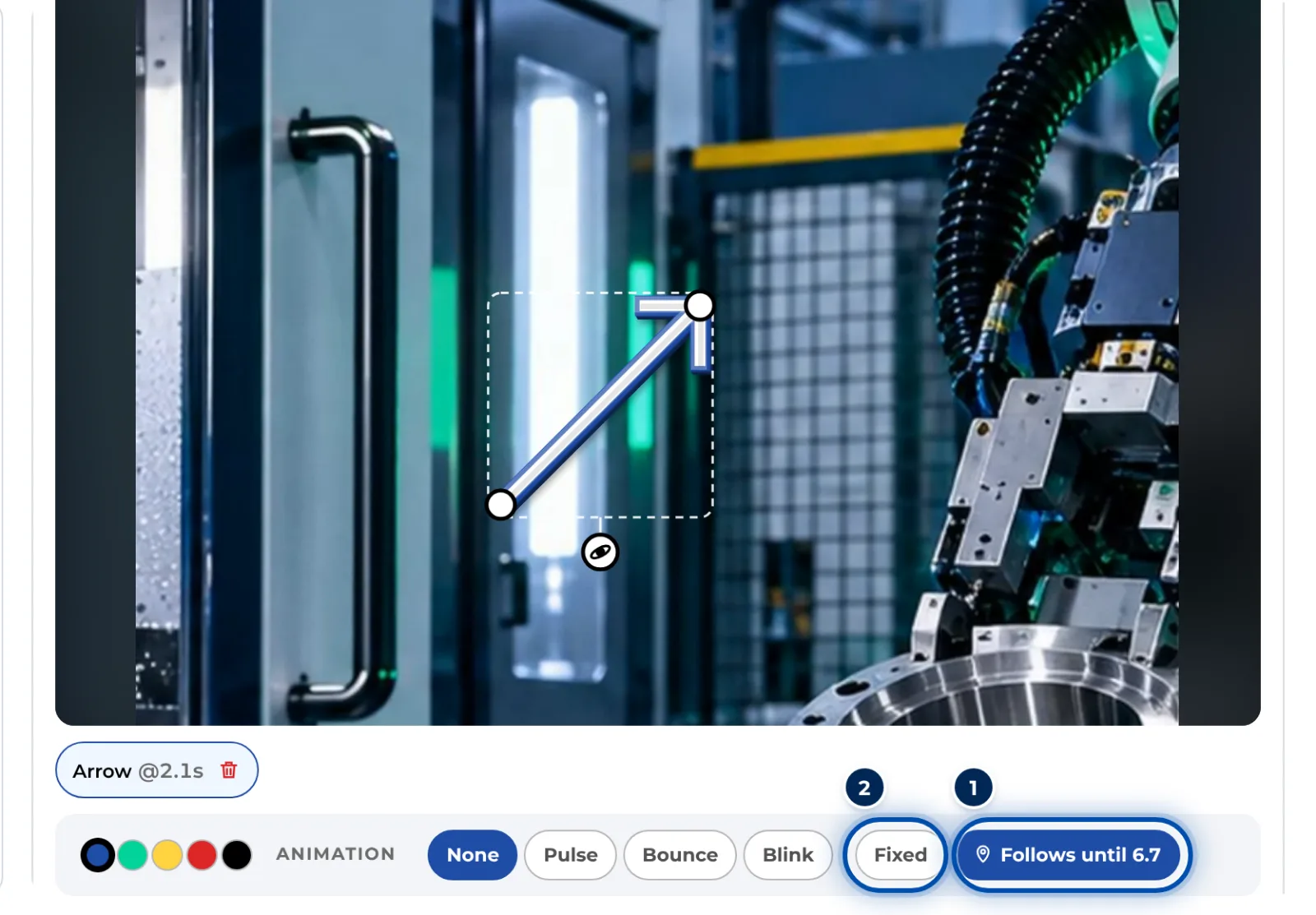
After the analysis, the button names the time up to which the symbol follows, next to it Fixed -
Fixed fixes the symbol in place again.
On a phone
-
Open the step, tap the Mark tab and then the symbol.
-
Tap Animation in the bar and choose the animation.
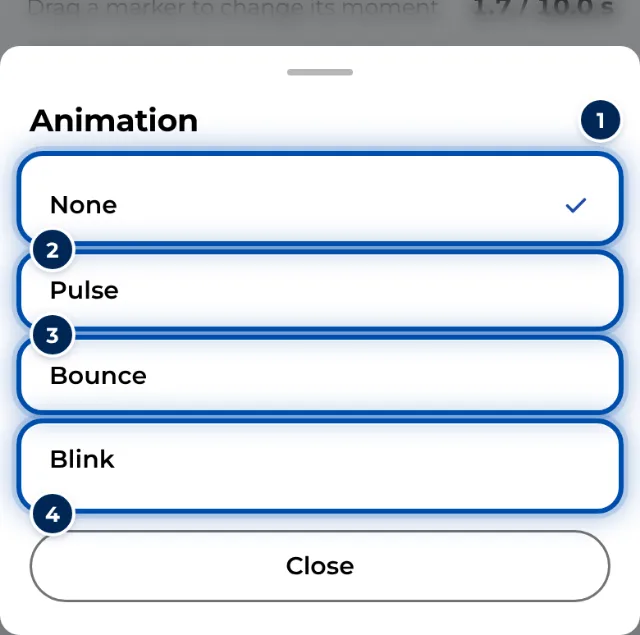
The Animation choice on a phone with None, Pulse, Bounce and Blink -
For a video, tap Follow in the bar. GIRI recommends doing this on a PC. Try here anyway lets you try on the phone anyway.
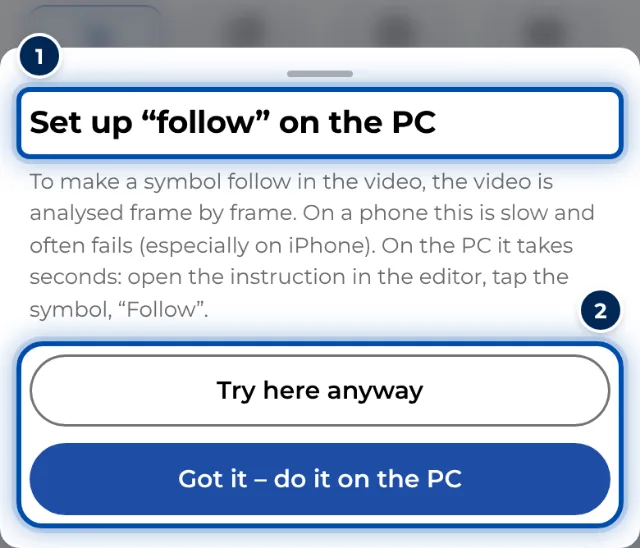
The hint on a phone: set up follow on the PC -
While the symbol follows, the bar shows Following. Tap it and the symbol is fixed again.
Tips
- Use animation sparingly. One moving symbol per step draws the eye best.
- Animations work on photos and in videos. Workers see them in the worker view.
- Following works best on clearly visible spots with good contrast and a steady camera.
- GIRI follows the spot up to the end of the trimmed part, for at most 20 seconds. So trim the video first, see Trim videos and crop pictures.
- The analysis runs in the browser on your device. On a PC it usually takes just seconds.
Common problems
- GIRI reports that the track was lost. The spot was hidden, moved too fast or left the picture. Up to that point the symbol follows. Add a second symbol for the rest or record the video more steadily.
- GIRI says Following not possible here (video not readable). The browser can’t read the video frame by frame here. Try it on a PC.
- Following doesn’t work on a phone, especially an iPhone. The analysis is slow there and often fails. Set it up on a PC.
- Follow is missing. Following is only available for videos.