Guide
Define training requirements
Turn an instruction into a training: which department it applies to, how many people should be trained and how long a record stays valid.
What for?
In GIRI, a training is an instruction with a training requirement. Whoever works through it in the worker view confirms with their signature at the end, and GIRI stores a record. The matrix then shows who is trained and where people are still missing. GIRI activates training per workspace; ask at giri@ar-giri.de.
Before you start
- Training is activated for your workspace.
- You are a Workspace Admin.
- The instruction already exists. Records only come in once it is published.
Step by step
On the Training page
-
Open the Menu at the top right, choose Training and the Trainings tab. Click Add training.
-
In the Add an instruction as a training dialog, search for the instruction and click it, for example “Safety briefing: pillar drill”. If it is not published yet, GIRI points this out.
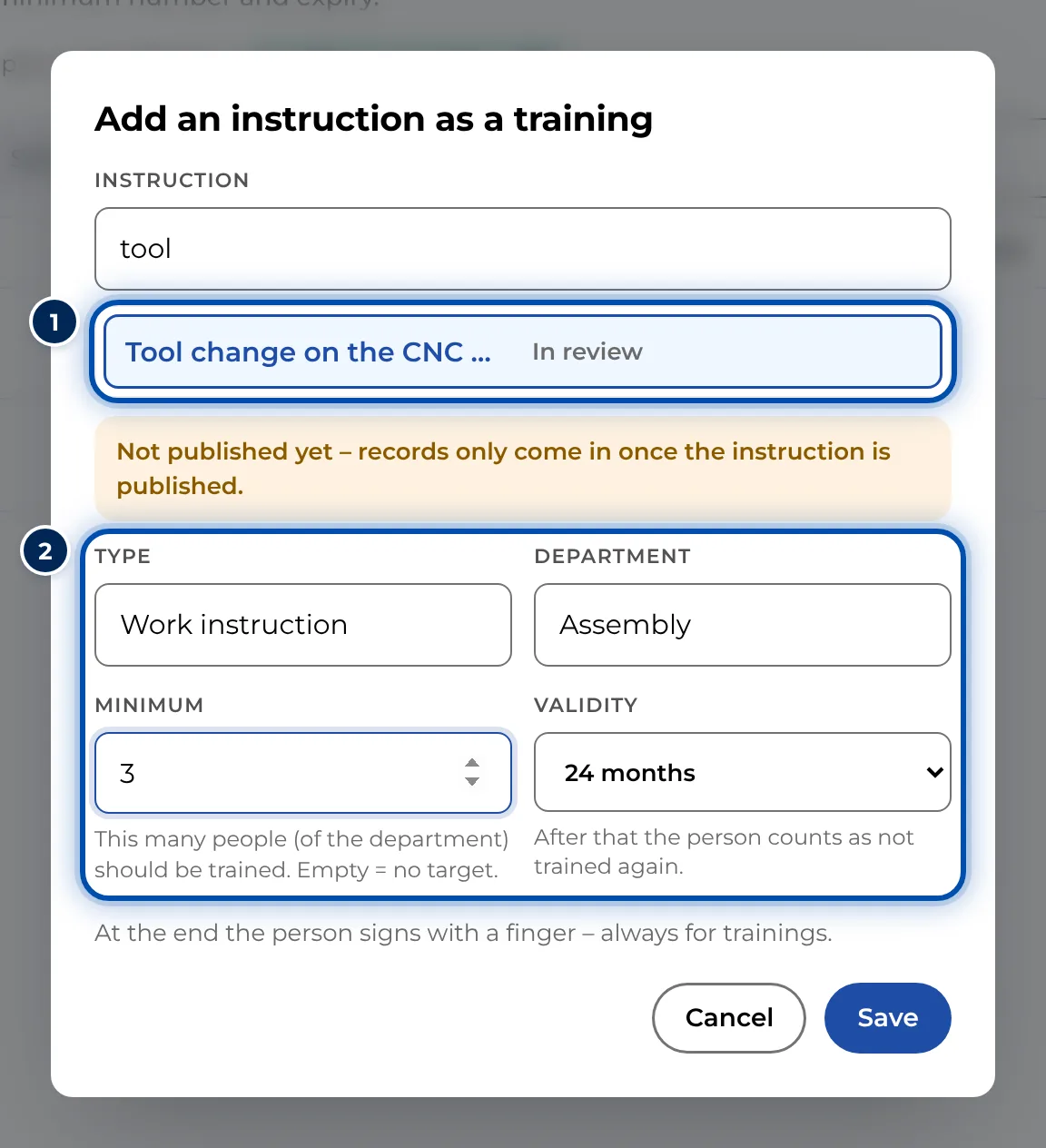
Add an instruction as a training dialog with type, department, minimum and validity -
Fill in the fields and click Save:
- Type: up to you; GIRI suggests, for example, Work instruction or Safety briefing.
- Department: who the training applies to. Empty means all departments.
- Minimum: how many people of the department should be trained. Empty means no target.
- Validity: no expiry or 6, 12, 24, 36 or 60 months. After that the person counts as not trained again.
A signature is always required for trainings.
-
The training now appears in the list with Trained, Minimum, Outstanding and Validity.
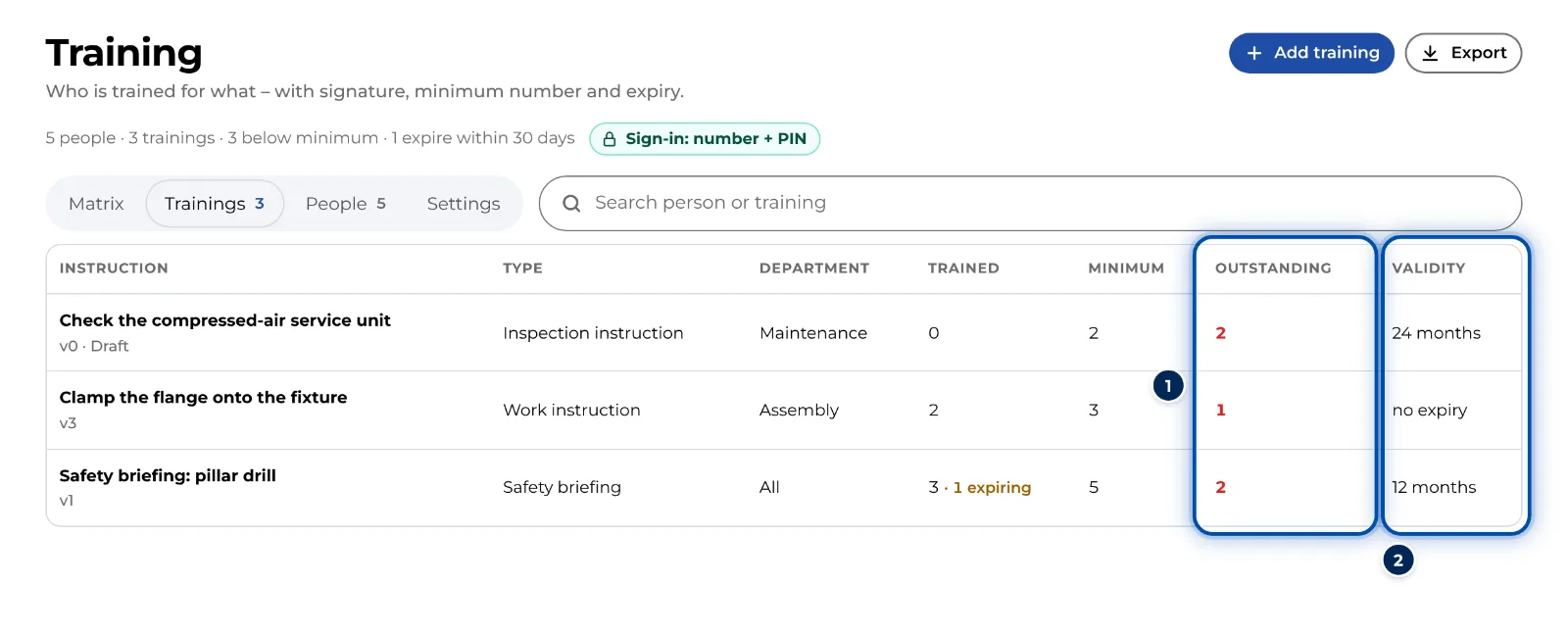
Trainings tab with three trainings, their minimum and how many people are still missing
In the instruction
-
Open the instruction, click the Settings tab and switch on Record as training. The same fields appear and save immediately. Training overview takes you to this training on the Training page.
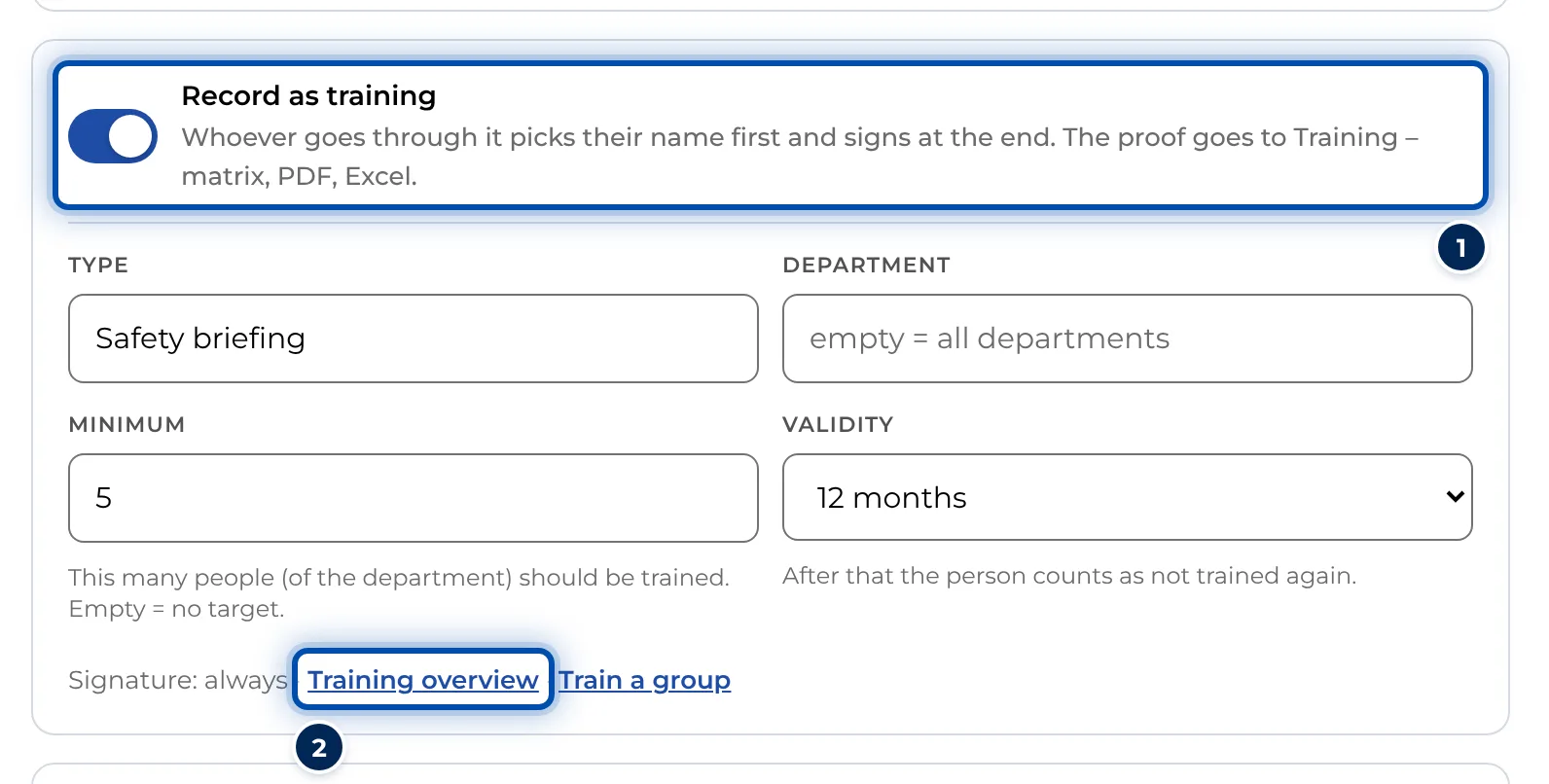
Settings of an instruction with Record as training switched on
Change or end
- On the Training page, click the training and then Edit. Remove training turns the instruction back into a normal one. The records are kept. In the instruction, switching off Record as training does the same.
Tips
- Spell the department exactly as for the people. Upper and lower case do not matter; other spellings do.
- Validity counts from the day of the signature. 30 days before it runs out, GIRI shows expiring.
- If the instruction has a checklist, the record is only created once every step is answered and signed. The result is then all OK or problems reported. Without a checklist it reads read.
- A record counts for every version of the instruction. A revision does not reset existing records. Which version someone confirmed is shown in the matrix.
Common problems
- The Record as training switch is greyed out. An admin decides whether an instruction is a training.
- The section is missing from the settings. Training is not activated for your workspace.
- The instruction does not show up in the search. It is already a training or it is in the trash.
- No records come in. The instruction is not published, it was only opened in the Preview, or the checklist was not fully answered and signed.