Guide
Read the training matrix
Who is trained for what, what expires soon and where people are missing to reach the minimum: the matrix, legend, filters and export explained.
What for?
With the matrix you plan the next briefings before records expire, and you have the current status to hand for audits. Admins, QM and Team Admins read the same matrix, Team Admins only for their department. GIRI activates training per workspace; ask at giri@ar-giri.de.
Before you start
- Training is activated for your workspace.
- As a Workspace Admin you see everything. With the workspace role Approver, Compliance Approver or Compliance Manager (QM) you read everything. As a Team Admin you read the people of the department named like your team.
- There are people and trainings, see Add people and Define training requirements.
Step by step
-
Open the Menu at the top right, choose Training and the Matrix tab. A summary sits above the matrix, for example how many trainings are below the minimum and how many records expire within 30 days.
-
Each row is a person, each column a training with its type and department. The cells mean:
- ✓ green with a date: trained on
- ✓ orange with a date: expires on, within the next 30 days
- ! red with a date: expired on
- –: not trained
- ·: not required, because the training applies to another department
Hover over a cell to see the status, date, version and validity. The legend is below the matrix.
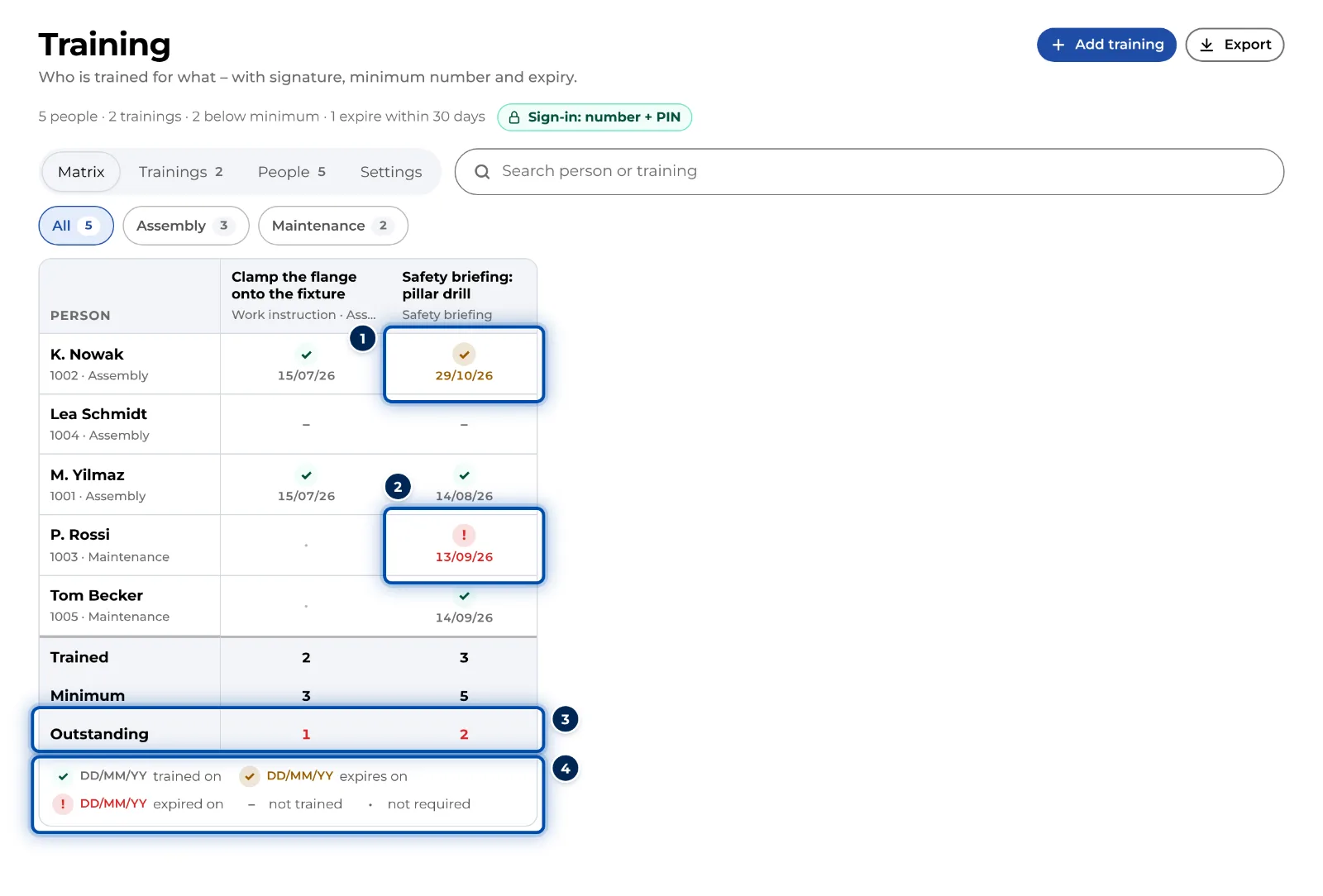
Training matrix with green, orange and red cells and the legend -
At the bottom, each training shows Trained, Minimum and Outstanding. Red means people are still missing to reach the minimum.
-
Filter by the departments above the matrix or use Search person or training to find a person or training.
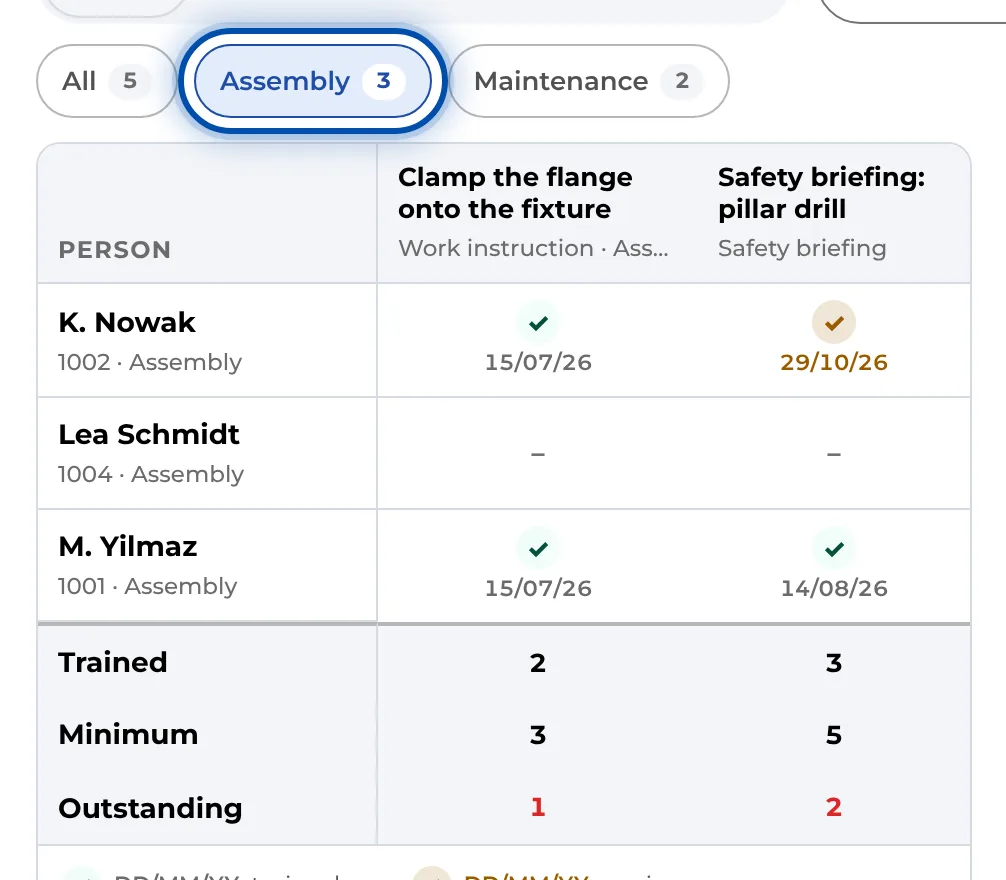
The matrix filtered to the Assembly department -
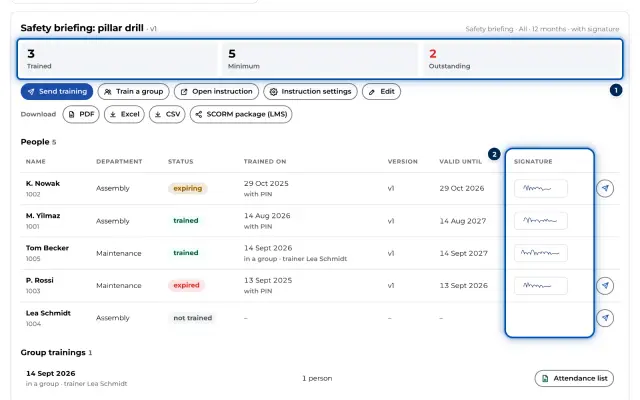
Click a name or a training. The detail opens below. For a person it lists their trainings; for a training it shows Trained, Minimum, Outstanding and every person, each with date, version, validity and signature.
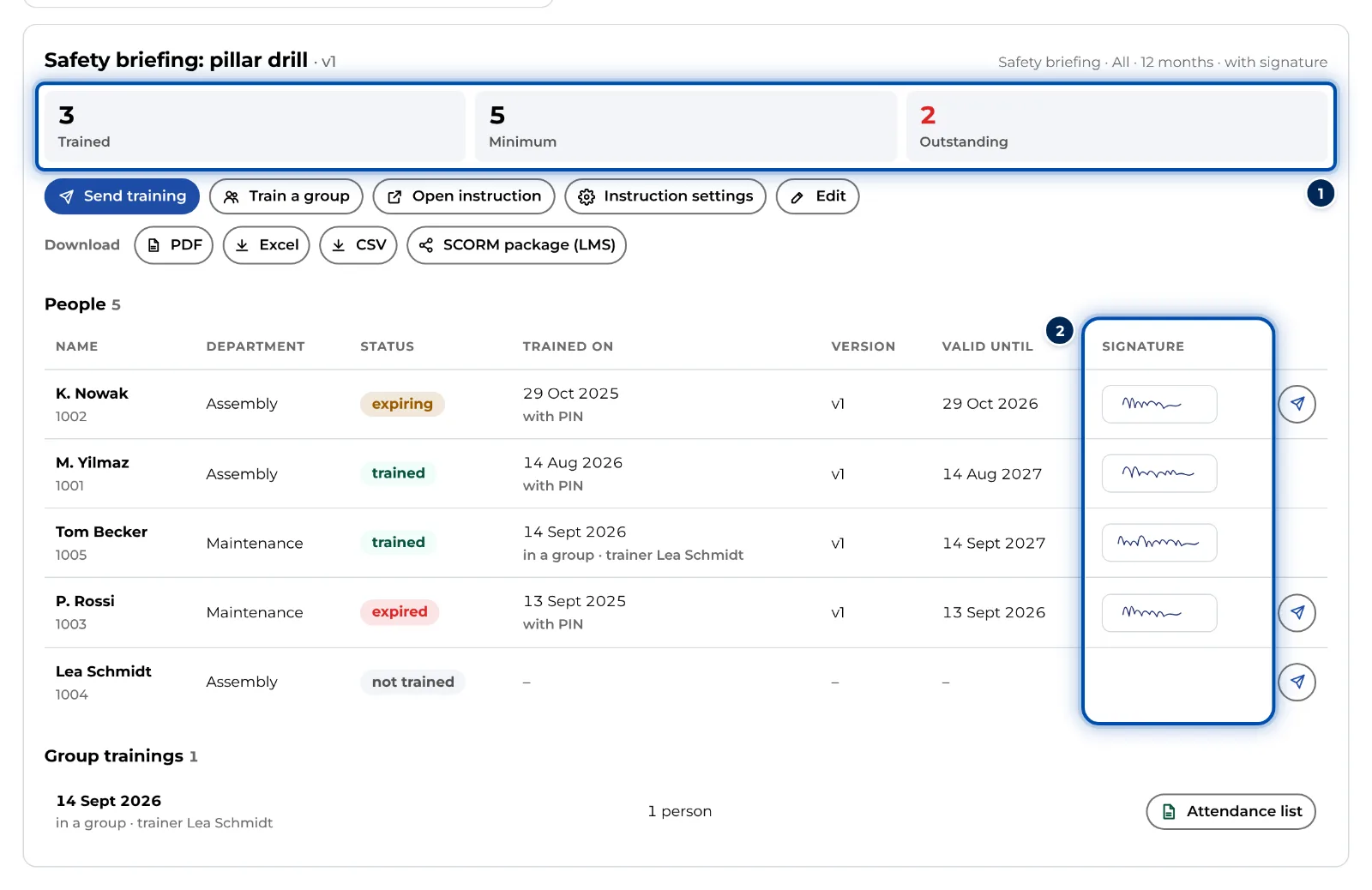
Detail of a training with tiles and the list of people -
For Excel, click Export and choose Excel or CSV. The file contains the matrix as filtered, with the summary rows.
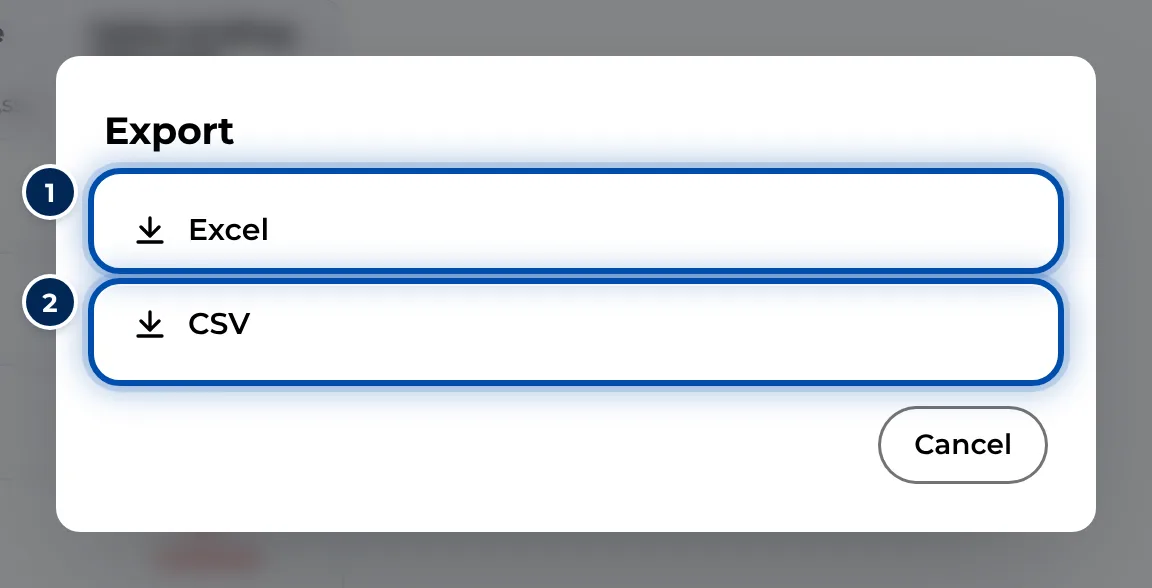
Exporting the matrix as Excel or CSV
Tips
- The matrix is clearest on a PC. On a phone you scroll it sideways.
- The page refreshes itself every 30 seconds. A training signed a moment ago appears without reloading.
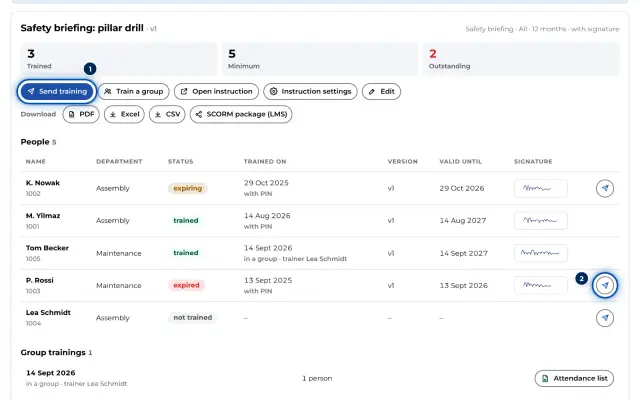
- Admins and Team Admins send the training straight from the detail to everyone not yet trained: Send a training.
- Team Admins and QM see a notice at the top that they can only read. They can still download exports and PDFs.
Common problems
- A person has a dot instead of a dash. The training applies to a different department from theirs. Check the department of the person or the training.
- Someone signed but still shows –. The record could not be matched to a person. An admin assigns it, see Assign and export training records.
- As a Team Admin you see nobody. Nobody of your departments (Assembly) is on the list yet – a person's department must be named like your team.
- Minimum and Outstanding show a dash for Team Admins. For trainings that apply to all departments, GIRI sets no target for Team Admins because they do not see everyone.