Overview
Roles and permissions
Who may do what? The eight roles for instructions, the workspace admin, and the difference between the workspace role and a team role.
Only the Workspace Admin manages users, teams and roles. Everyone else works with one of the eight roles described below.
Workspace role and team role
Everyone has a workspace role. You choose it when you invite someone and change it later in the Users list under Users & teams. A person can also be a member of teams, with a separate role in each team.
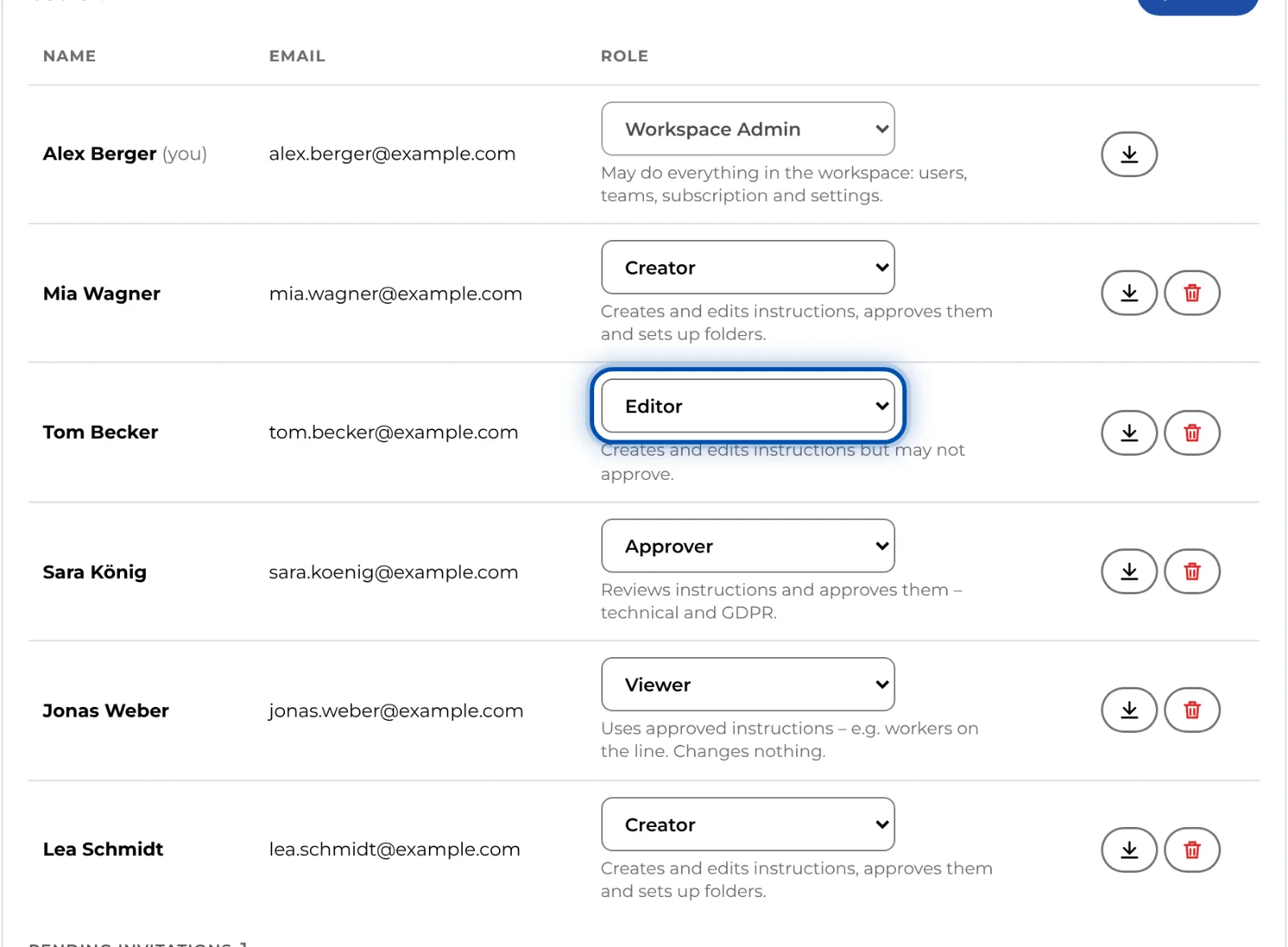
Which role applies depends on where an instruction belongs:
- Folder without a team: everyone in the workspace sees the instructions in it. The workspace role applies.
- Folder with teams: only members of those teams see the instructions. The team role applies; the workspace role does not count here. Anyone in several of these teams gets the rights of all their team roles combined. The same applies to instructions you assign to teams individually.
- Workspace admin: sees everything and has every right everywhere, including in every team.
Example: Tom Becker’s workspace role is Viewer. In the Assembly team he is Editor. In the Assembly folder, which only the Assembly team can see, he edits instructions. In every other folder he can only read.
For actions that do not belong to a folder, such as New instruction or New folder, it is enough if any of your roles has the right. Both the workspace role and all team roles count.
How to create teams and assign them to folders is explained in Teams and folder access.
The roles at a glance
Every role may view. A tick means the role has that right.
| Role | Edit | Technical approval | GDPR approval | Link & QR code | Folders | Analytics |
|---|---|---|---|---|---|---|
| Viewer | – | – | – | – | – | – |
| Editor | ✓ | – | – | – | – | ✓ |
| Approver | – | ✓ | ✓ | ✓ | – | – |
| Technical Approver | – | ✓ | – | ✓ | – | – |
| Compliance Approver | – | – | ✓ | ✓ | – | – |
| Compliance Manager | – | – | ✓ | ✓ | – | – |
| Creator | ✓ | ✓ | ✓ | ✓ | ✓ | ✓ |
| Team Admin | ✓ | ✓ | ✓ | ✓ | ✓ | ✓ |
| Workspace Admin | ✓ | ✓ | ✓ | ✓ | ✓ | ✓ |
What the rights mean:
- Edit: create, change and delete instructions and submit them for approval. This includes custom symbols and the import from PDF or photos.
- Technical approval and GDPR approval: grant that approval. Anyone who holds both rights publishes on their own, because the second approval publishes automatically. See How approval works.
- Link & QR code: hand out published instructions as a link or QR code. Anyone with this right or with Edit can download a PDF.
- Folders: create, rename and delete folders and set a link password for a folder.
- Analytics: open the Analytics tab of an instruction and work on feedback.
- Workspace admin only: users, teams and roles, Branding, the settings for the QR sheet, Subscription and receipts, Configure AI, Import from GIRI Classic, the session length, and GDPR data export and erasure.
Which role for whom?
- Workers who only open instructions via link or QR code need neither an account nor a role.
- People who should read instructions in the app: Viewer.
- People who record and maintain content but do not approve it: Editor.
- Quality assurance in a small team: Approver for both approvals. In larger organisations, split it: Technical Approver and Compliance Approver.
- Process owners who take an instruction from recording to publication on their own: Creator.
- The lead of an area: Team Admin in that team.
The principle: as few rights as possible, as many as needed. You can upgrade someone at any time.
Good to know
- Only the workspace admin manages users, teams and roles. The short descriptions in the app mention user management for Team Admin and Compliance Manager. In GIRI 12, however, these roles cannot invite anyone, change roles or edit teams.
- In GIRI 12, Compliance Manager has the same rights as Compliance Approver.
- Editor submits instructions but does not approve them and does not share links. If someone needs both, give them Creator.
- The approval roles do not create content. That keeps reviewing and creating separate.
- You cannot change your own role. Another admin does that for you.
- If GIRI has activated training for your workspace, only admins manage it. People with the workspace role Approver, Compliance Approver or Compliance Manager may read it, as may team admins for the department that has the same name as their team. Team admins may also use Train a group.
- Under Users & teams you will find the Roles & permissions card. Some columns there come from GIRI 11 and have no function of their own in GIRI 12. The table above is what counts.