Guide
View and restore versions
Every approved version is kept, with its change, submission and approvals. How to open old versions and bring one back.
What for?
In an audit or after a complaint, what counts is which version was valid when, and who approved it. The versions show you that. If a change has not worked out, you bring back an earlier version.
Before you start
- To view versions, you need an edit or approval right. Approvers who cannot edit find the versions on the review page.
- To restore a version, you need the right to edit.
- The instruction has been published at least once.
Step by step
-
Open the versions. On a PC they are at the very top of the instruction’s Settings tab. You also find them in the editor’s ⋯ menu under Approval & history. On the review page, expand Versions. On a phone, open them there through ⋯.
-
The newest version is at the top. Each version shows its number, change and description. Below that are Submitted, Technical approval, GDPR approval and Published, each with a name and a time. The version workers currently see is marked live. A draft in progress sits above the list, together with the reasons if it was sent back.
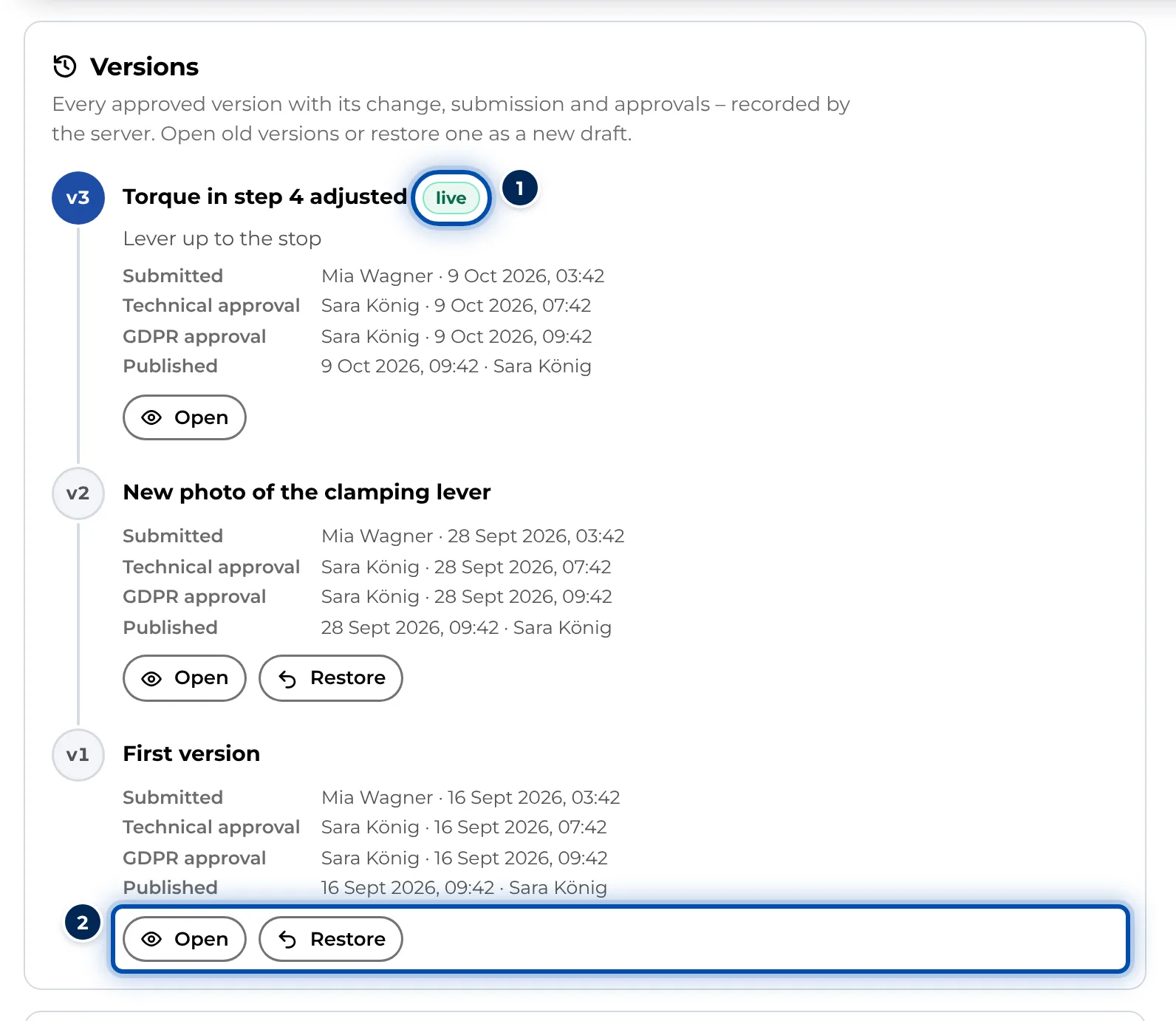
The list of versions in the settings of an instruction -
Click Open next to a version. It opens read-only in the worker view. A note tells you whether it is valid, for example: Old version v1 – not valid. v3 is live.
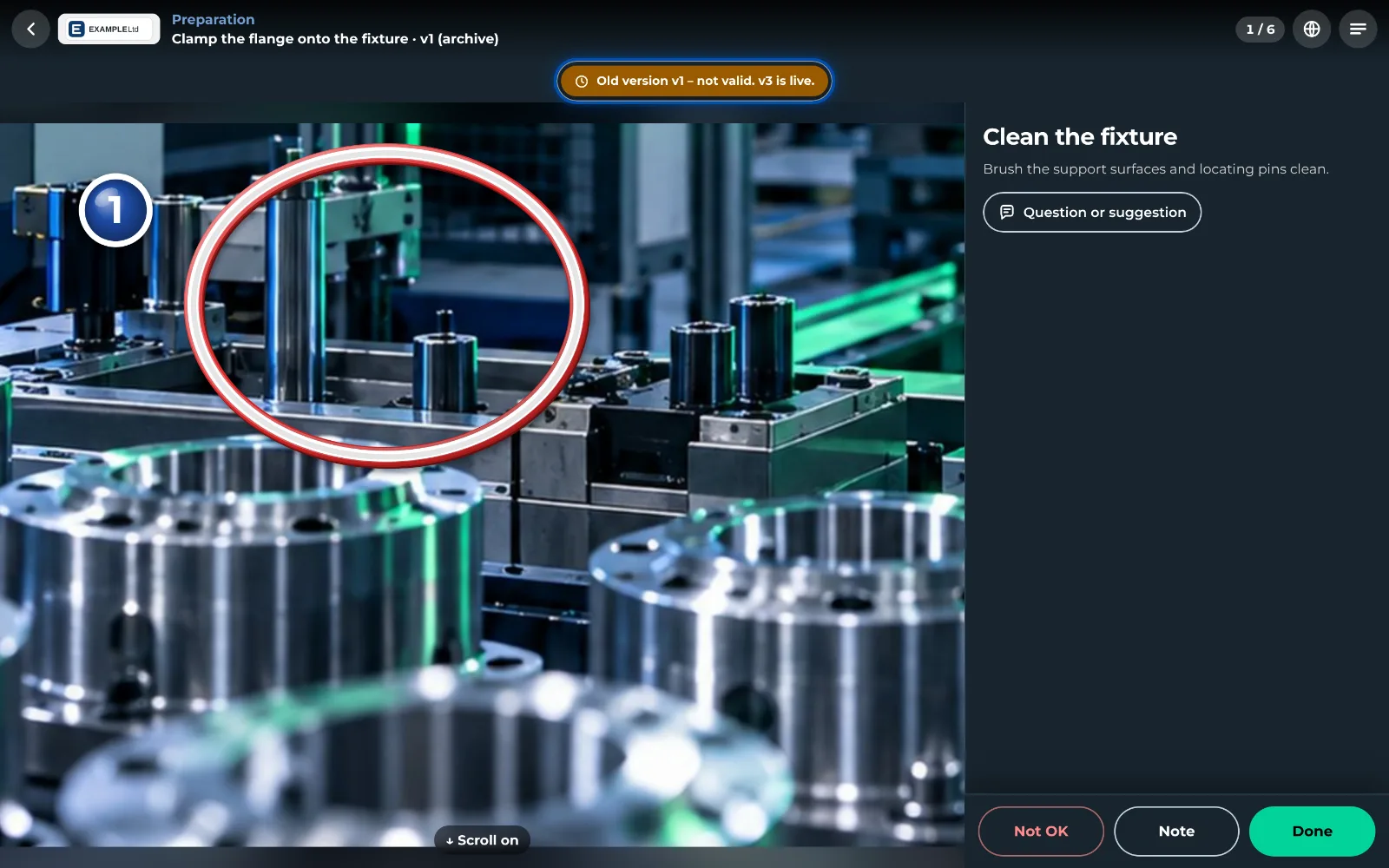
An old version in the worker view with a note on which one is live -
To bring a version back, click Restore. GIRI asks Restore v1? and explains what will happen. Confirm with Restore.
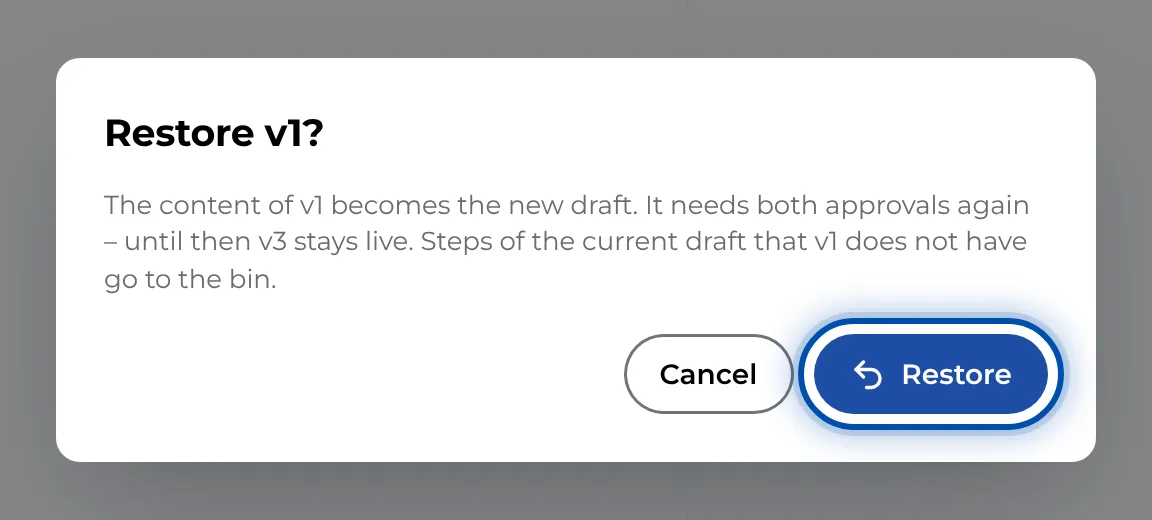
The question GIRI asks before restoring a version -
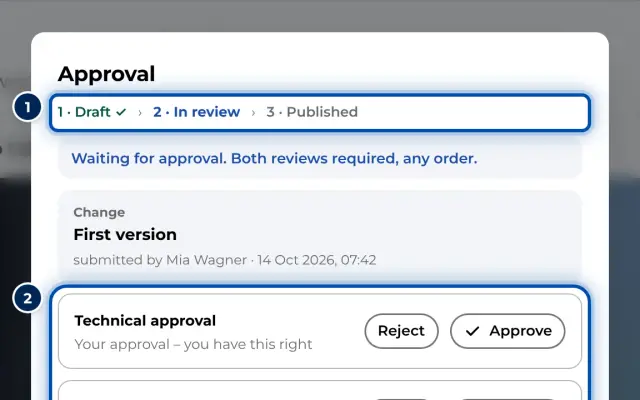
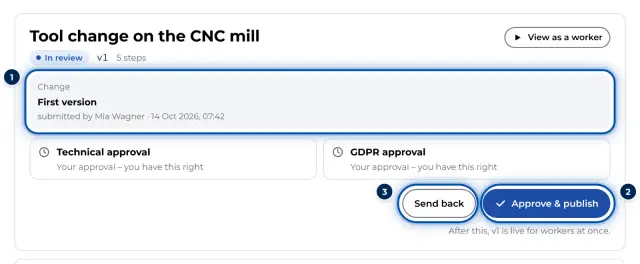
The editor opens with the content of the old version as a new draft. Change (short) already says Restored from v1. Check everything and submit it. Once both approvals are in, the content goes live as a new version, for example as version 4.
Tips
- Restoring brings back the title, the steps, the checklist setting and the translations.
- Steps in the current draft that the old version does not have go to Deleted steps. Nothing is lost.
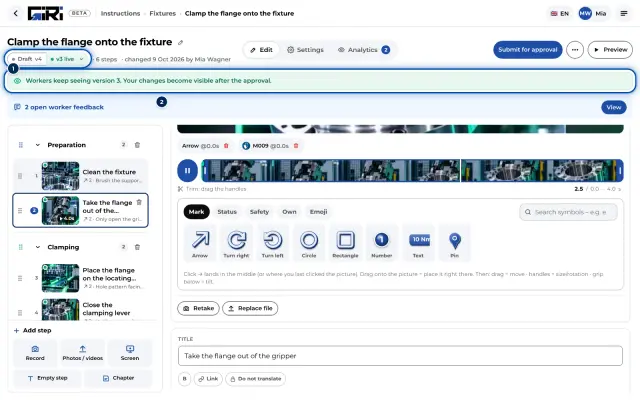
- Until the approval, workers keep seeing the live version.
- Entries cannot be edited or deleted. GIRI records each version at the moment it is published.
- From six versions on, GIRI first shows the five newest. Open the rest with Show all 8 versions.
Common problems
- Restore is missing. You do not have the right to edit, or the workspace is read-only. The live version of a published instruction has no such button because it is already live.
- A version has no buttons. GIRI says: Content not stored – published before version history. Only the entry exists for this version, not its content.
- The list is empty. No approved version yet – the first one is created once both approvals are given.