Guide
Set up a checklist and signature
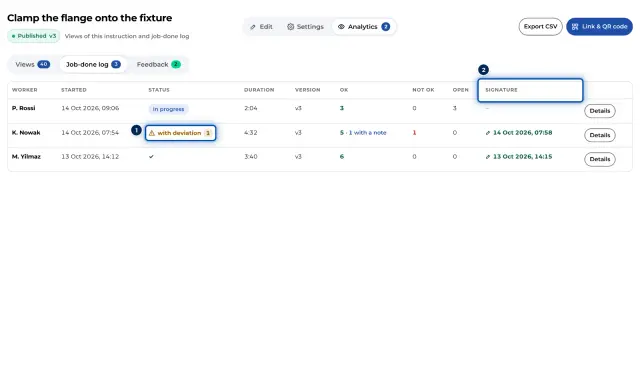
Decide which steps workers confirm and whether they sign at the end. The results end up in the job-done log.
What for?
A checklist turns an instruction into a record. Workers enter their name at the start and answer the steps with Done, Not OK or Note. This suits inspections, maintenance and anything you need to prove later.
Before you start
- A role with the edit right for the instruction: Editor, Creator, Team Admin or Workspace Admin.
- The instruction has steps. For the Per chapter only mode, chapters are worth having.
- Works on a PC and on a phone.
Step by step
-
Open the instruction and go to Settings. On a PC this is a tab at the top of the instruction; on a phone you find it in the ⋯ menu.
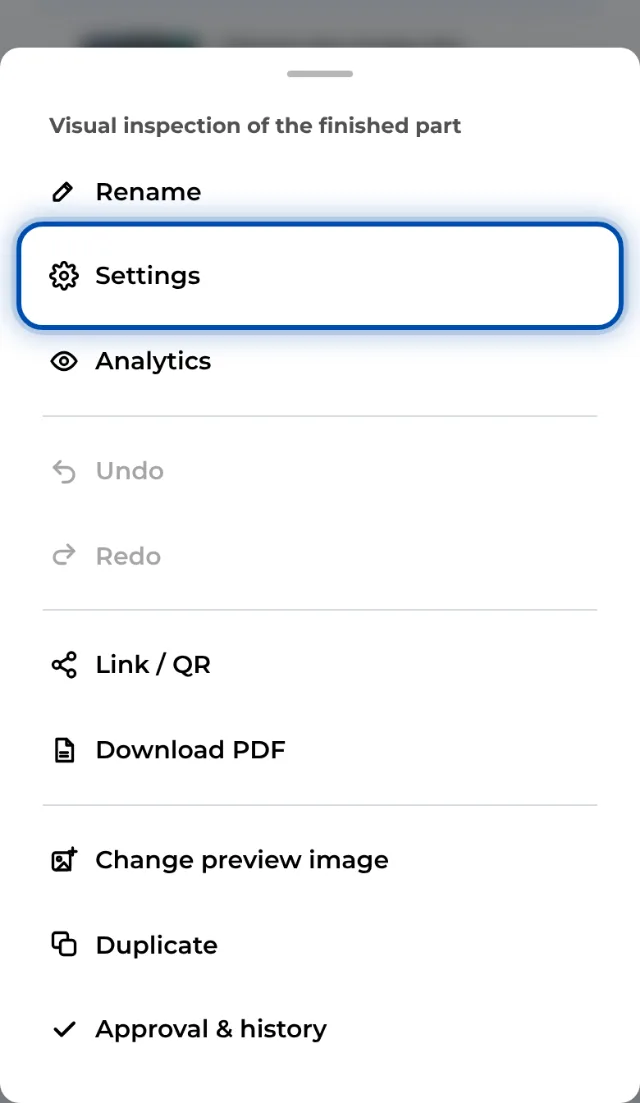
On a phone, the settings are in the instruction’s ⋯ menu -
Switch on Enable checklist. Three modes and the Finish with a signature switch appear below it.
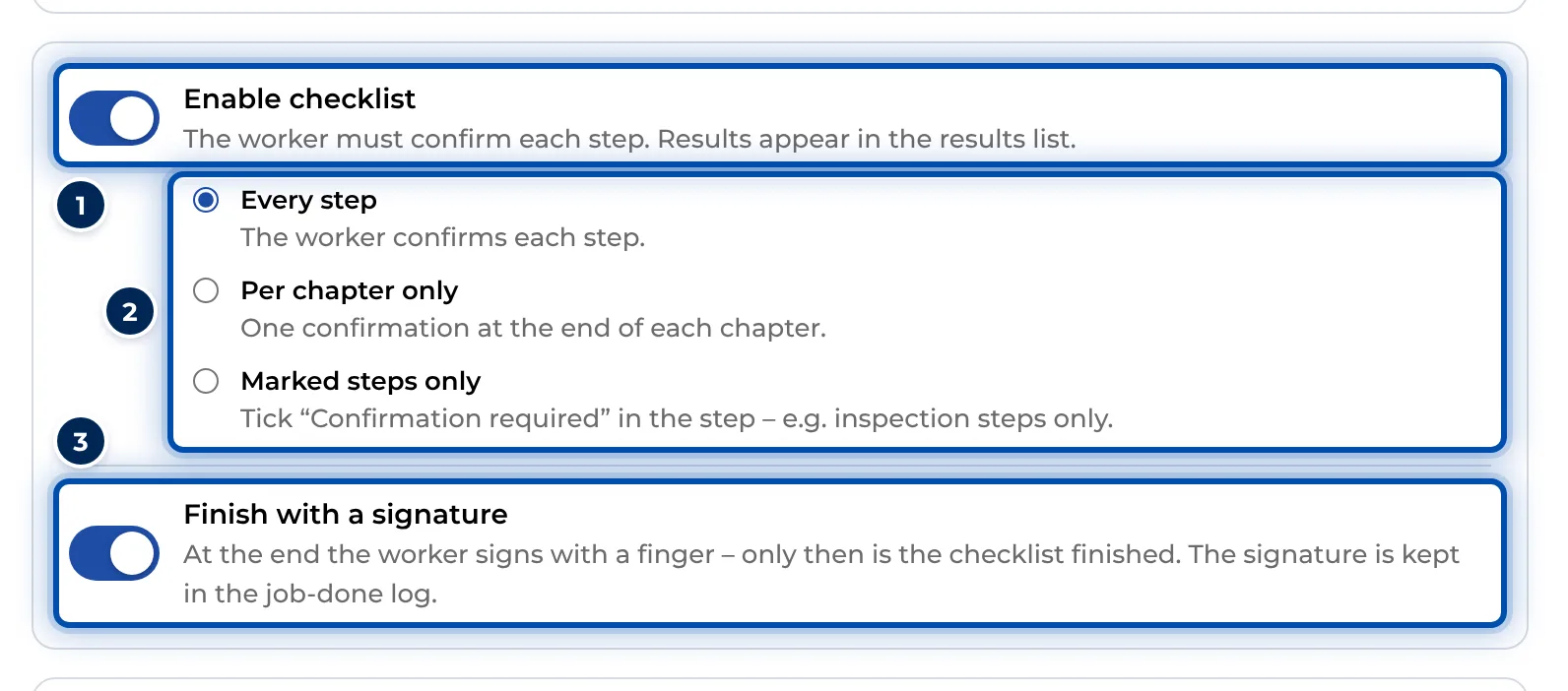
The checklist with its three modes and the signature switch -
Choose what workers confirm:
- Every step: every step gets its own confirmation.
- Per chapter only: the last step of each chapter is confirmed, and the button then reads Confirm chapter. Without chapters there is a single confirmation at the very end.
- Marked steps only: only the steps you mark.
-
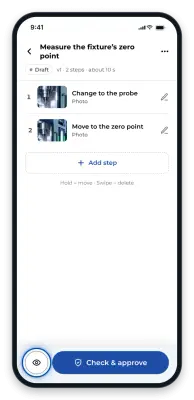
In the Marked steps only mode: go to Edit, select a step and tick Confirmation required. A tick in the step list shows which steps workers confirm.
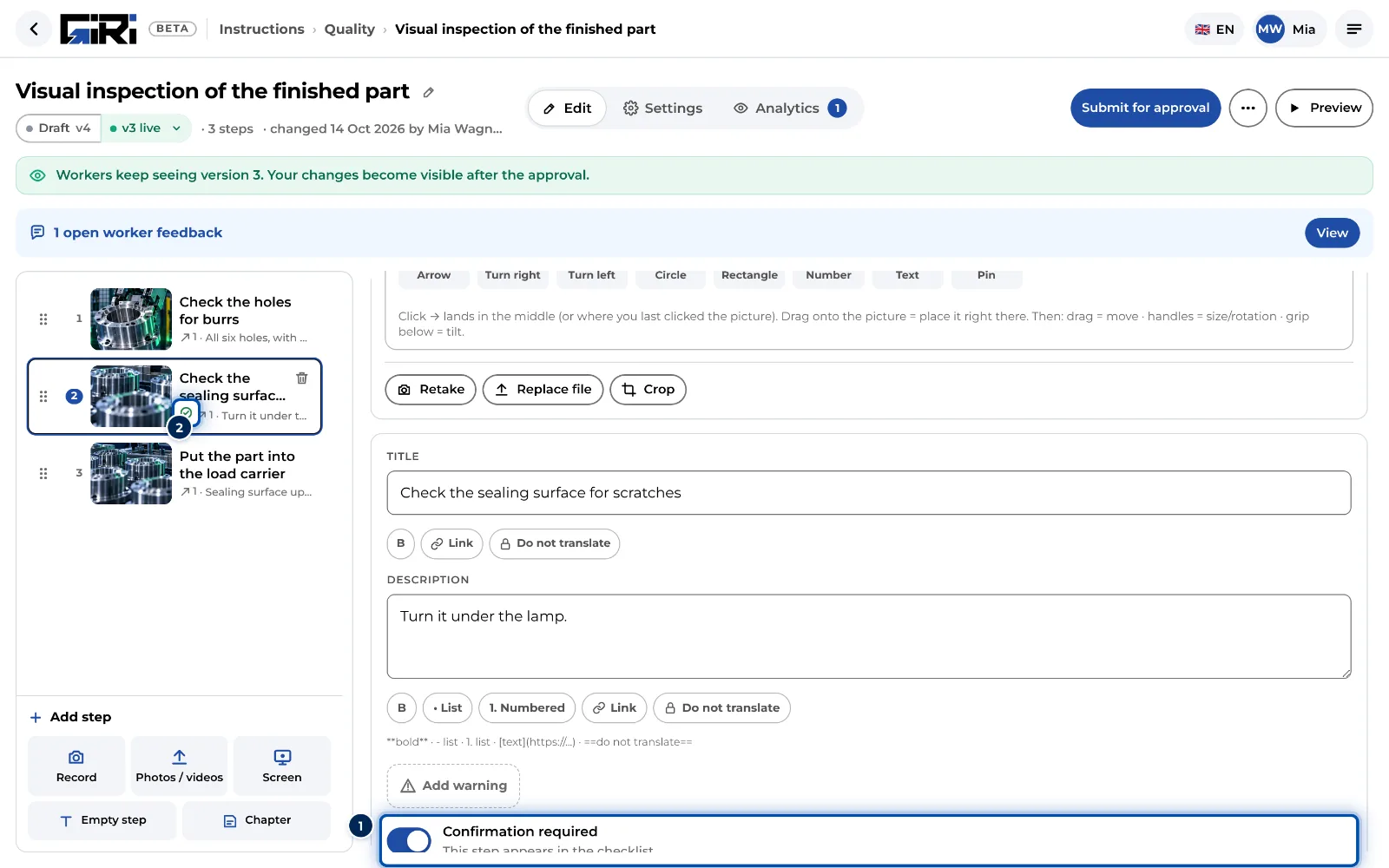
In the marked-steps mode, you tick the confirmation in the step itself -
Switch on Finish with a signature if a signature is needed at the end. Workers then sign with a finger at the end, and only that completes the checklist. You find the answers and the signature in the job-done log.
-
Check the flow in the preview. No answers are saved there, and you can move freely through all the steps.
Tips
- Marked steps only suits long instructions where only a few checks matter, such as a torque value or a visual inspection.
- Per chapter only suits instructions whose chapters are work packages, for example prepare, clamp and inspect.
- With a checklist, workers cannot move on until the open step is answered. So state clearly in every confirmed step what is being checked.
- For paper: in the PDF, every step that needs confirming gets a Confirmed box.
- If the instruction is a training (Record as training), the signature is always part of it. See Define training requirements.
Common problems
- Finish with a signature is greyed out. If the instruction is recorded as a training (Record as training), the signature is mandatory anyway and the switch stays on. If the text under the switch says it comes with a database update, contact GIRI.
- Confirmation required is missing in the step. The tick box only appears when the checklist is on and Marked steps only is selected.
- There is nothing to confirm. In Marked steps only, no step has been marked yet. Tick Confirmation required in the steps that matter. For a published instruction the new mode applies at once, but the ticks in the steps only take effect with the next approval. So submit the instruction straight afterwards.
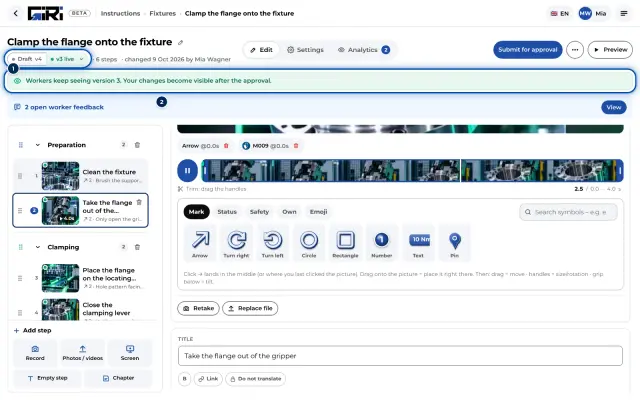
- Workers don’t see the new setting. A new version is in progress. Workers keep seeing the approved version until the new one is approved. See Update a published instruction.