Guide
Create a knowledge check
Add questions to a training, written yourself or suggested by the AI. Only people who pass the knowledge check confirm the training with their signature.
What for?
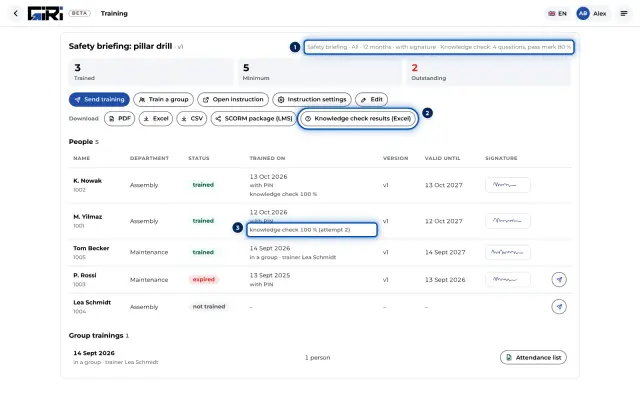
A signature shows that someone worked through a training. The knowledge check shows whether they understood what matters. After the last step, everyone being trained answers a few questions. Only those who pass sign and get the record.
Before you start
- Training is activated for your workspace.
- You have the right to edit the instruction.
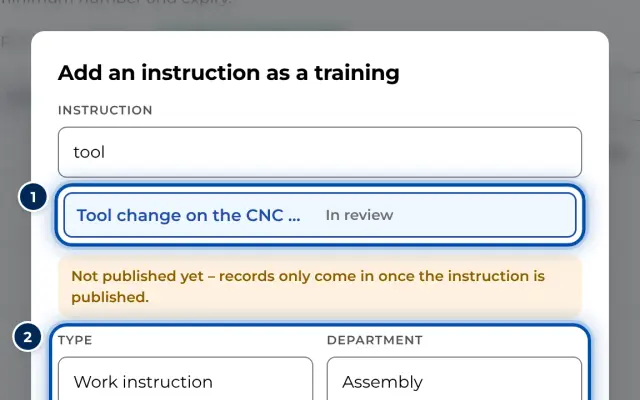
- The instruction is a training: Record as training is switched on in its Settings. See Define training requirements.
Step by step
-
Open the instruction and click the Knowledge check tab in its header.
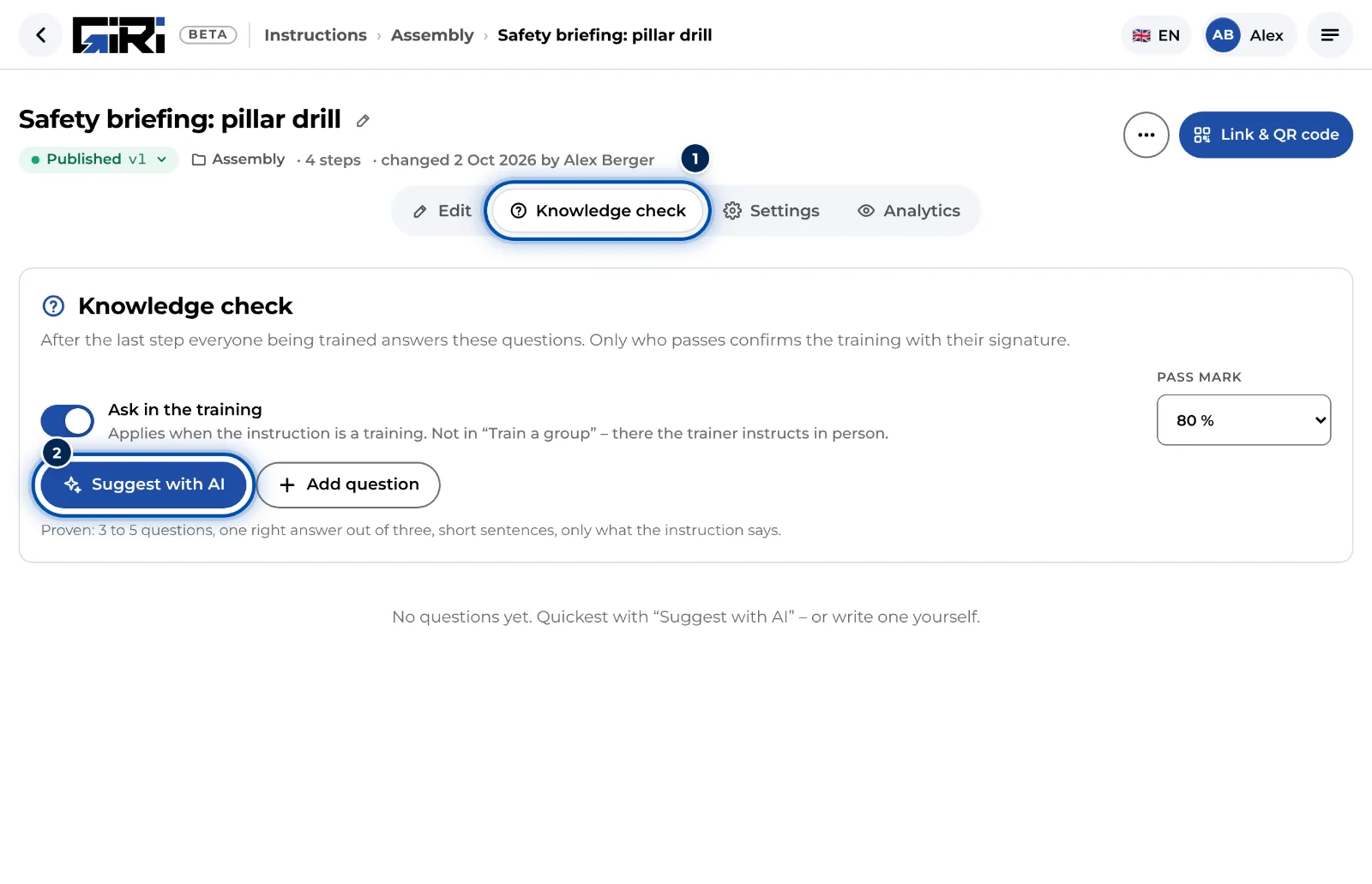
The Knowledge check tab of a training, still without questions -
Click Suggest with AI. The AI reads the texts of your steps and suggests up to five questions. What happens to the texts is explained in AI and your data. You can also click Add question and write a question yourself.
-
Check every suggestion from the AI. It carries the label AI suggestion. Correct whatever is wrong, then click Fine. Only then does GIRI ask the question.
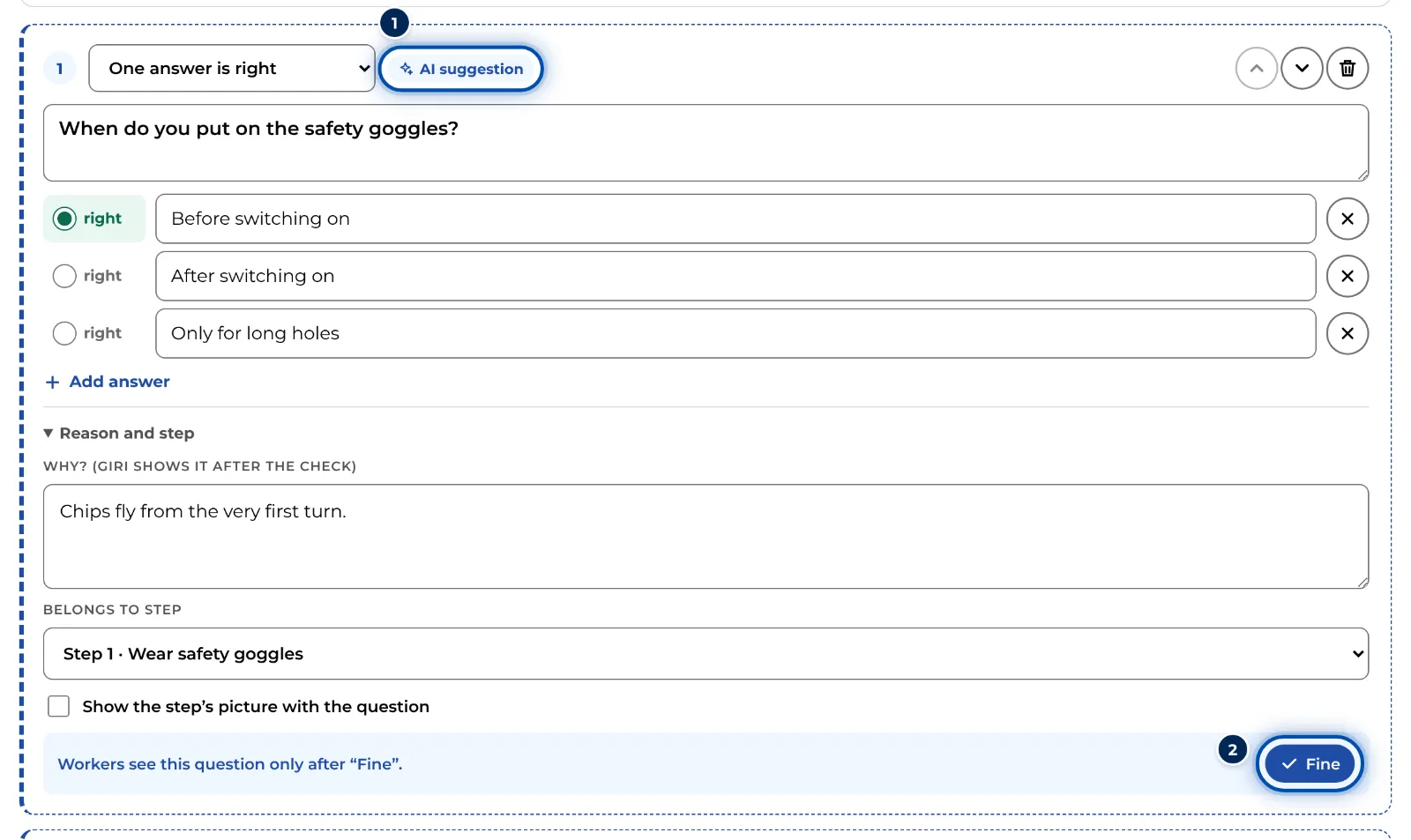
A suggestion from the AI: workers only see the question after Fine -
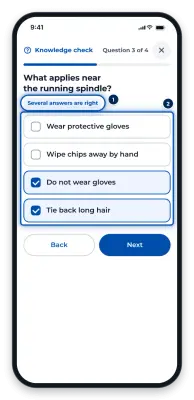
Choose a type for each question: One answer is right, Several answers are right or Yes / No. Mark the right answers with right. No answer is marked as right by itself.
-
Open Reason and step. Under Why? (GIRI shows it after the check), write why the answer is right. Under Belongs to step, pick the step it is about. After the check, GIRI shows both for every wrong answer, with a link to that step. With Show the step’s picture with the question, the step’s picture already appears with the question.
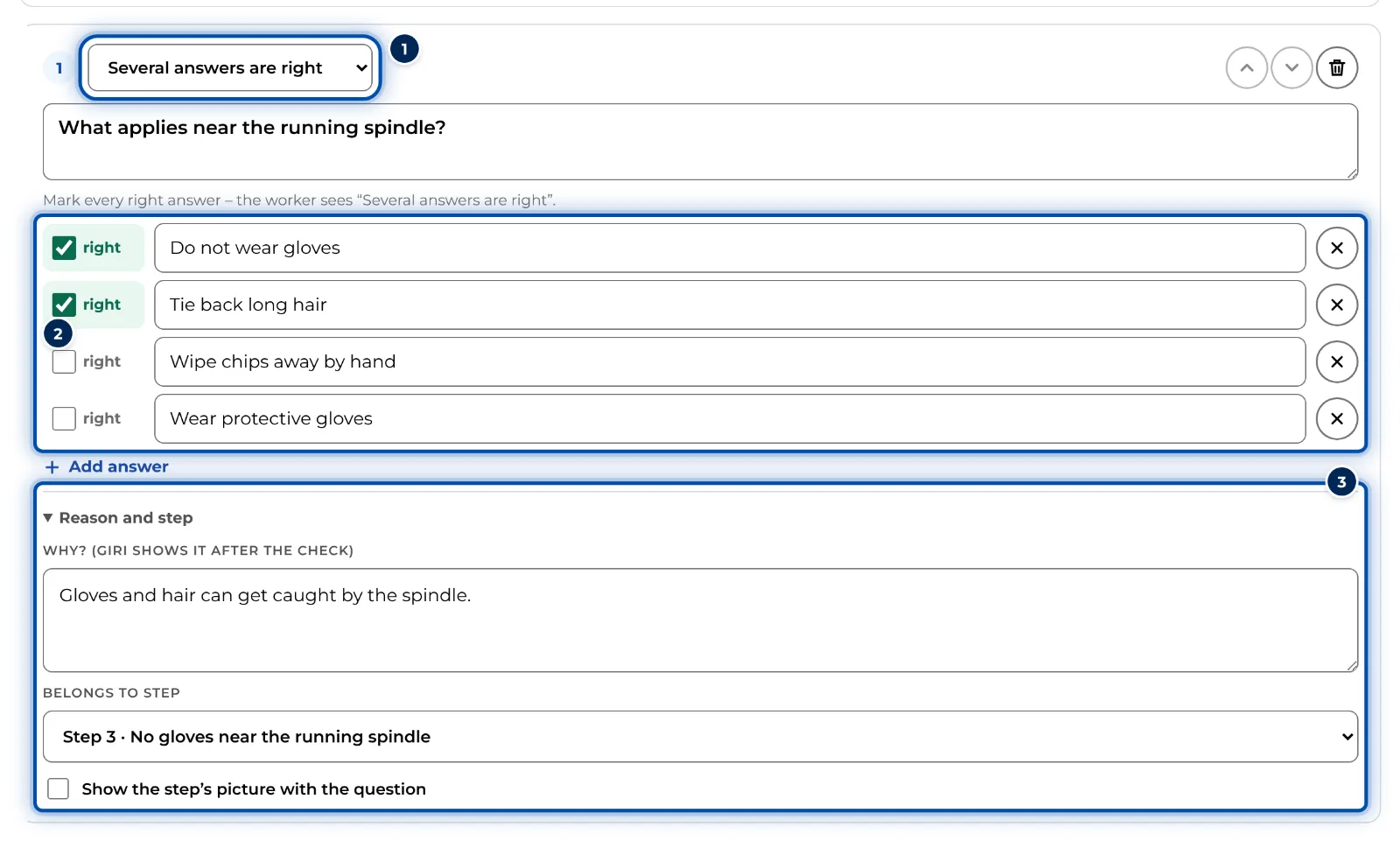
A question with several right answers, a reason and a step -
At the top, set under Pass mark the share of right answers someone needs to pass. The default is 80 %. Ask in the training switches the knowledge check on or off for this training. Below it, GIRI says how many questions it asks.
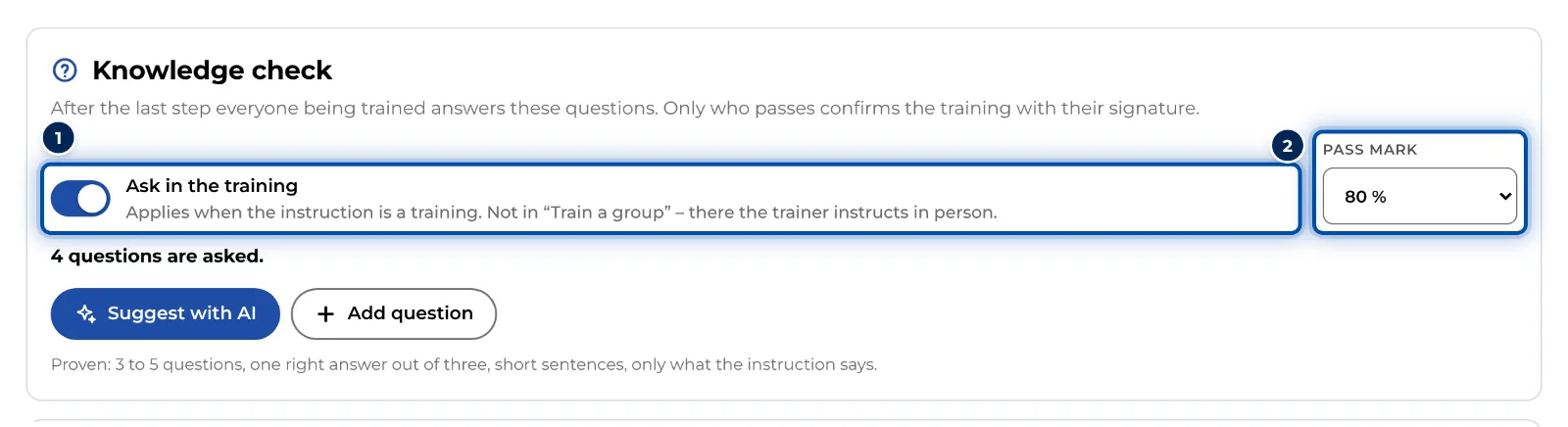
The knowledge check on or off, the pass mark and how many questions are asked -
Try the knowledge check in the preview. Nothing is saved there.
-
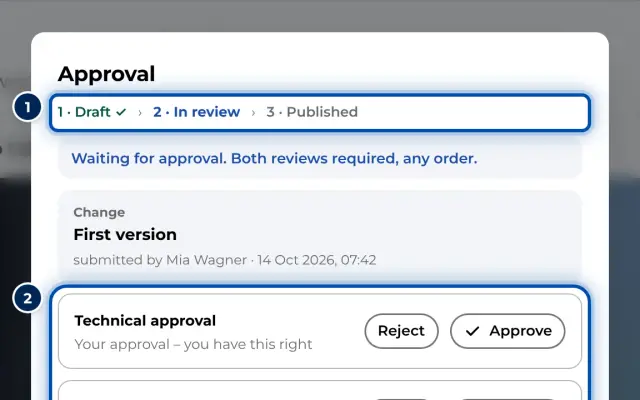
Submit the instruction for approval. The questions are part of the instruction and go through approval with it. Workers get them as soon as this version is published.
Tips
- Proven: 3 to 5 questions, one right answer out of three, short sentences, only what the instruction says.
- Ask about what really matters: protective equipment, order of work, test values. No trick questions.
- Use yes/no questions sparingly. Anyone guessing is right half the time.
- Link every question to its step. Whoever answers wrongly gets there with one tap.
- GIRI translates questions, answers and reasons together with the instruction. Workers answer them in their language, see Instructions in other languages.
Common problems
- The Knowledge check tab is missing. Training is not activated for your workspace, or you do not have the right to edit the instruction.
- This instruction is not a training yet. Click Switch it on in the settings and switch on Record as training.
- A question is not asked. Below the question, GIRI says what is missing, for example Mark exactly one right answer. GIRI does not ask incomplete questions or unchecked suggestions from the AI.
- Suggestions need steps with text. The AI needs text in the steps: a title, a description or a warning. It does not read pictures or videos.
- Today’s AI budget is used up – it works again tomorrow. The suggestions share the AI’s daily allowance with the import from PDF or photos: at most 60 calls per workspace in 24 hours.